
You can use the Marketplace module to post and share opportunities for upcoming work. This can be a useful feature for vetting new candidates for defined work needs, speeding up work assignments for your onboarded talent, or executing RFI-style submissions for an upcoming project.
When you post a new opportunity, you can share it with your internal worker pool and/or external talent sources. Below we'll show you several ways to leverage the Marketplace module to get the most out of your opportunity workflows in Worksuite.
New talent recruitment gives you the flexibility for initial data collection of candidates to be reviewed and an interview to be scheduled before adding to your vetted talent.
TABLE OF CONTENTS
Introduction to sourcing & new talent recruitment
New talent recruitment has three parts: job openings (opportunities) that talent apply to; candidates, the people who apply and go through the workflow attached to the job opening; and the Marketplace, where you find all your job openings and candidates.
Talent can be considered Candidates only if they submitted their information via an opportunity and have not been invited to join your list of vetted talent.
Job Openings (Opportunities)
Job openings are the opportunities you have available for talent to apply to - these can be current openings or future opportunities.
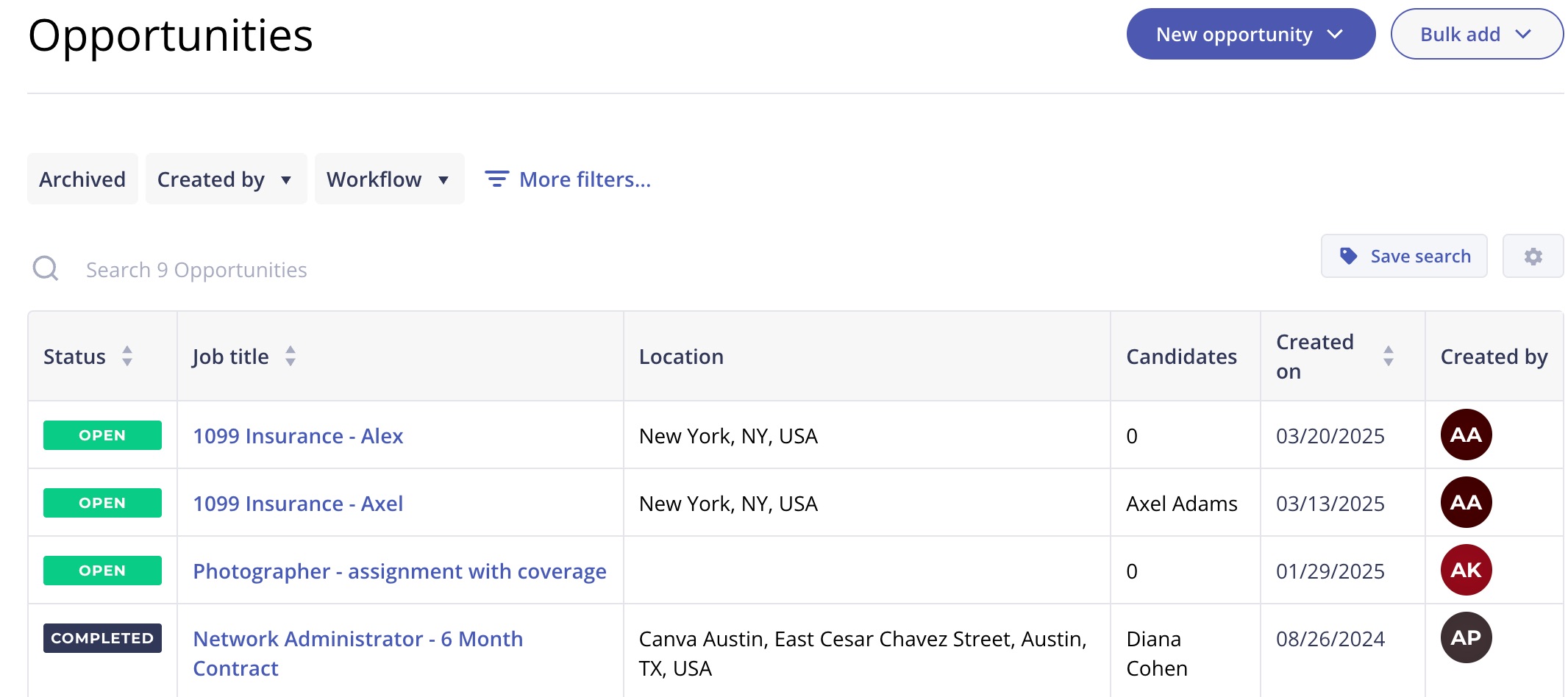
Depending on your settings, both new talent and existing talent can be invited to opportunities. You can post them publicly for a general view, privately so only specific talent can view them, and even invite specific talent to view the opening!
Job openings are a great way to collect talent information for future opportunities. Once you have a project ready, you already have the talent you need to begin!
Below the visibility options, you'll see the option to enable Link Sharing. Once you generate a link, you can share this on third-party sourcing sites or in emails or other direct means. You can also send it to your talent via bulk message. This is a good option if you want to use your talent filters to surface specific skills and send them only to those talents. For step-by-step instructions, see Creating an Opportunity (Job Opening).
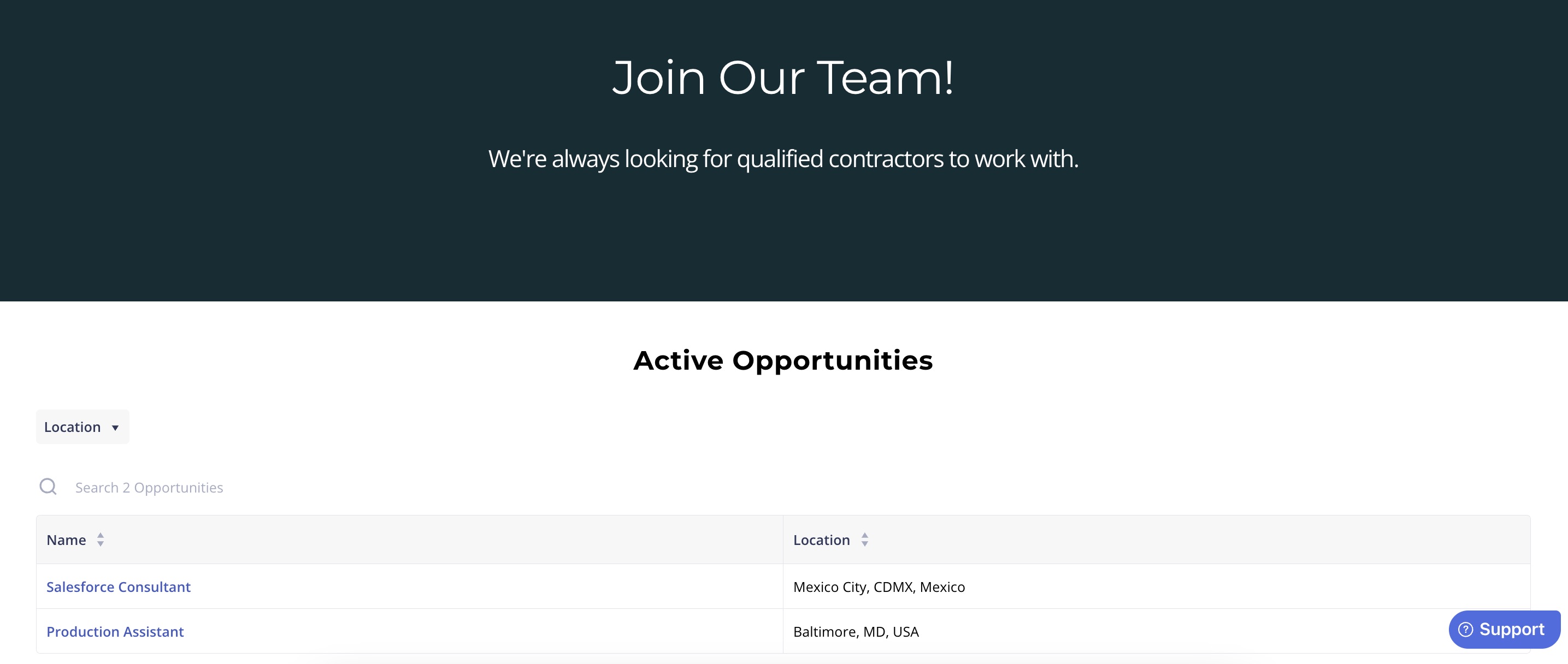
Public Portal
Public opportunities are listed on your Public Portal, where candidates can apply directly.
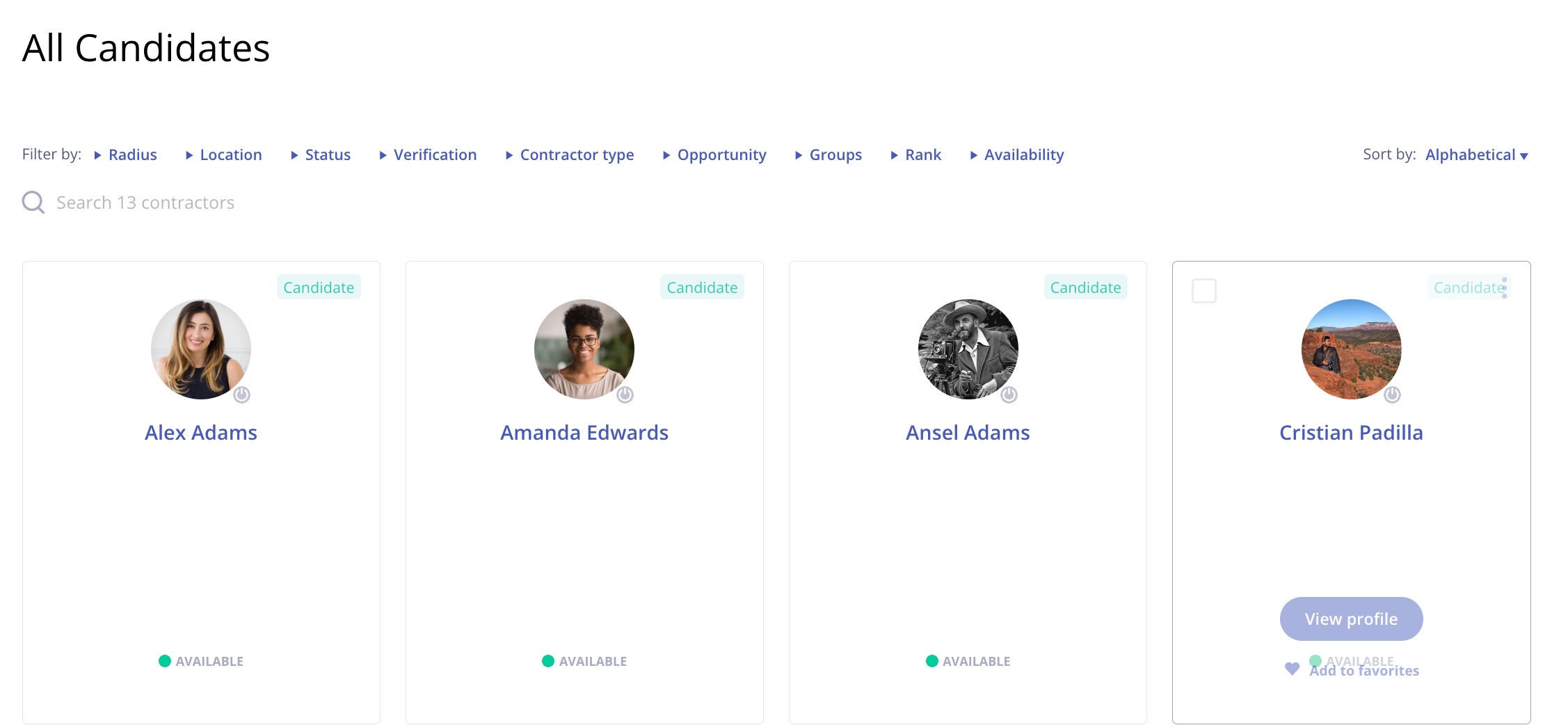
Candidates
Candidates are people who have applied but haven't yet been vetted and moved to your Worksuite talent pool. Candidates are vetted via the workflow you connected to your opportunity.
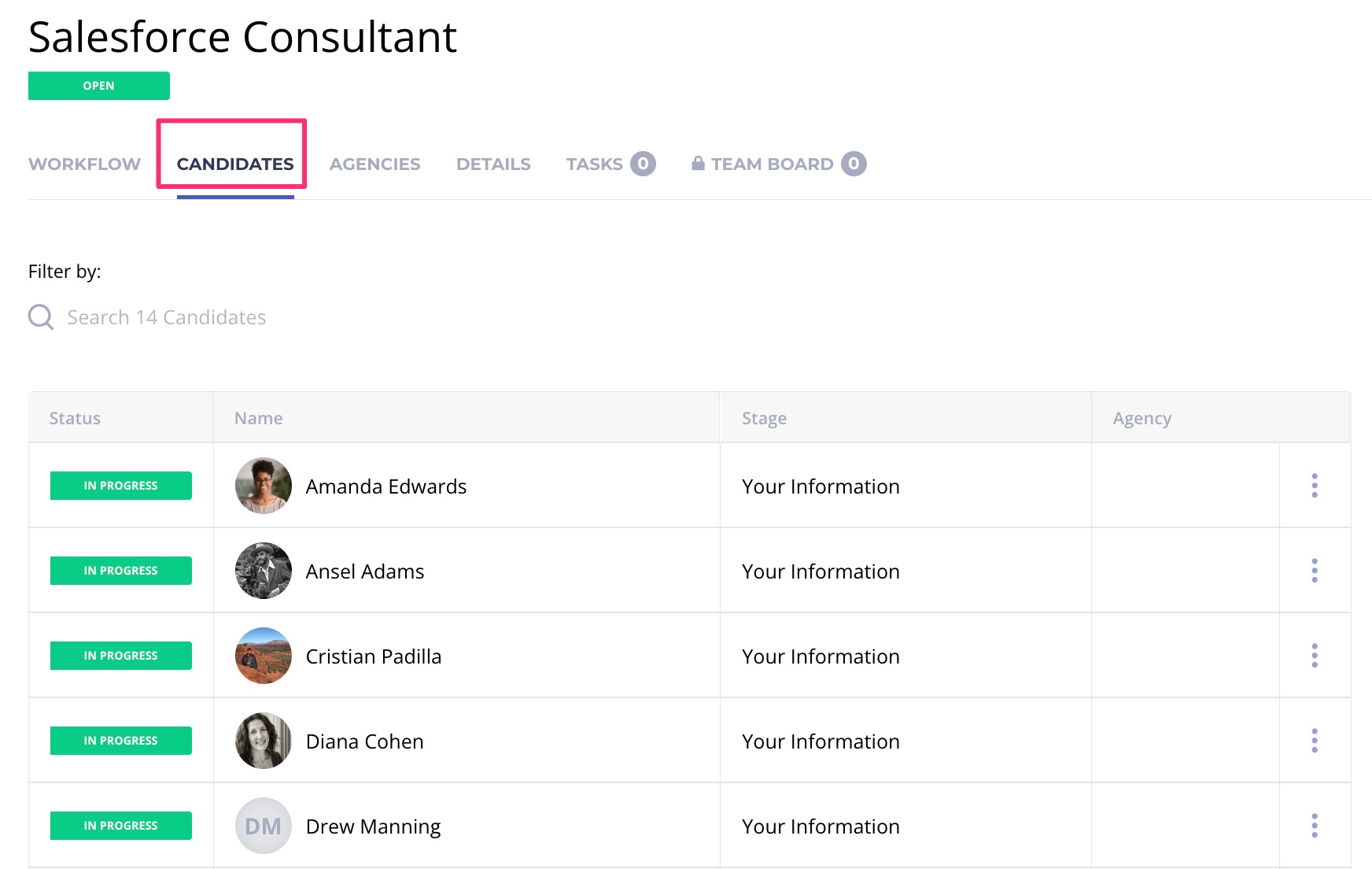
Candidates tab
Now that you've sent out your opportunity to a Worksuite talent or other external candidates, it's time to see the results. Those you've added will now be listed in the 'Candidates' tab of the job opening.
Workflow tab
The Workflow tab shows different stages of the opportunity workflow and the candidates' progress, similar to how it is tracked in the onboarding workflows.
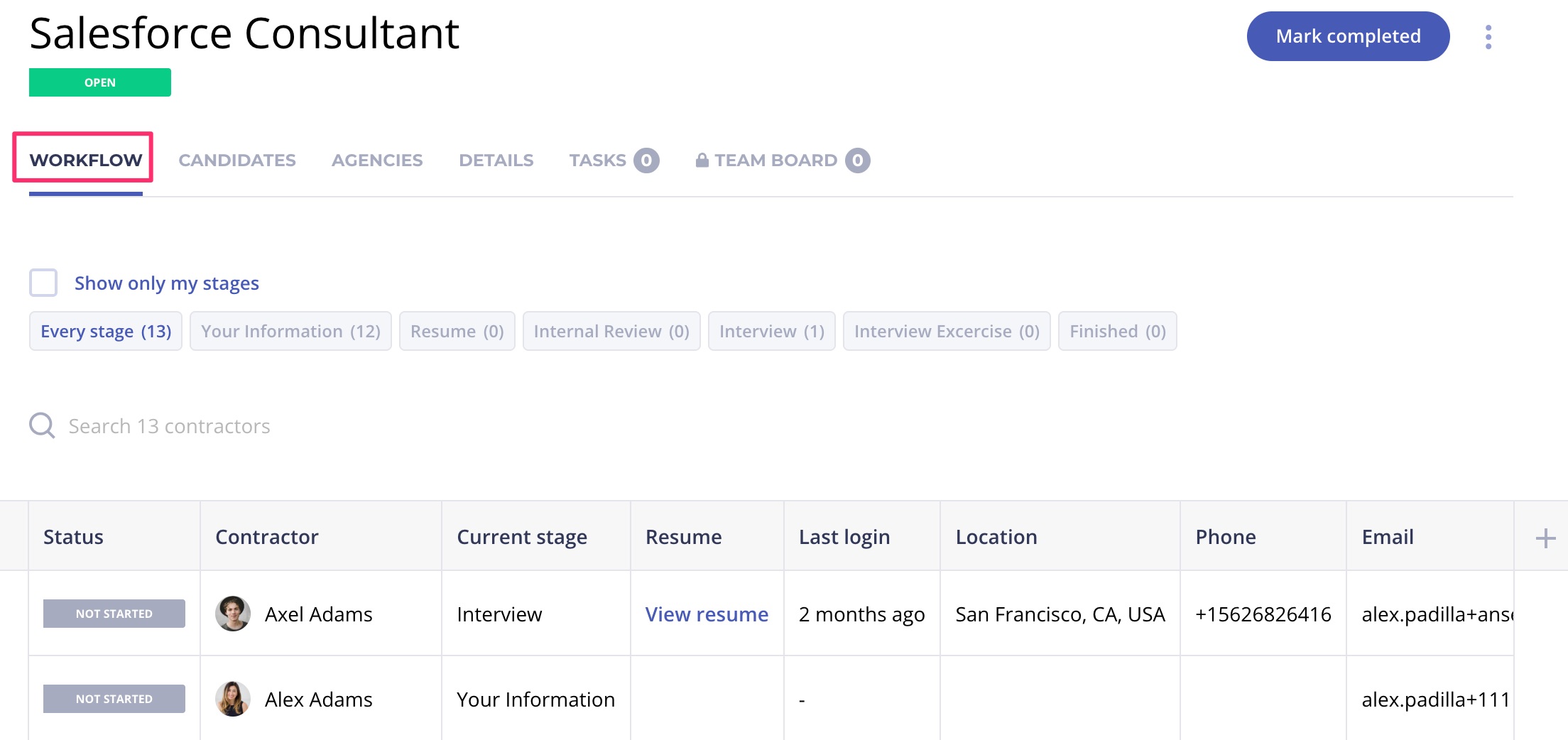
Assigning Work
The candidate tab will also feature the following action items next to each candidate:
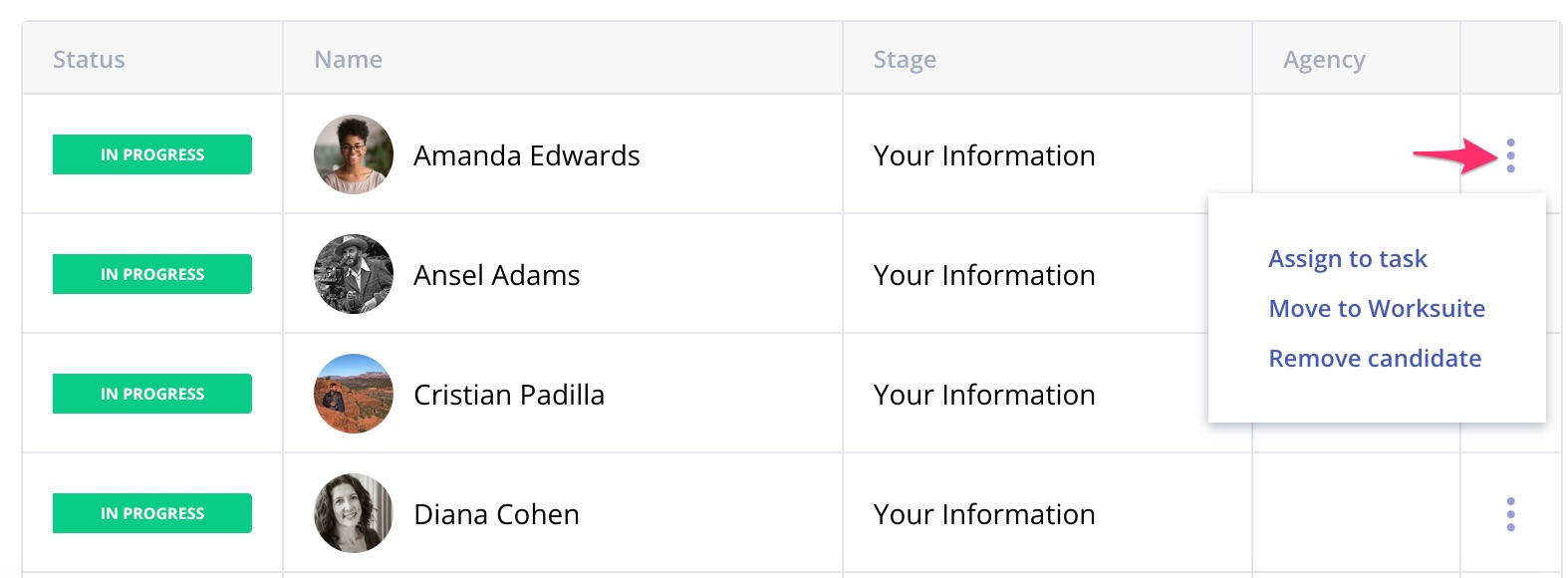
Hire / Not hire - Record the outcome for this candidate; their status changes to Hired or Not hired.
Assign to Task - If you'd like to award this talent a task, select this option to assign the talent to a new or existing Task. (Note: You can also use the automatic task creation option in your opportunity builder and pair it with an action stage that uses the Assign task action in your workflow to automate this step).

Move to Worksuite - For those new to your Worksuite, you'll be able to select this option to send an invitation for them to create a Worksuite account.
You will be prompted to choose what talent type they will be, as they are no longer candidates, and what onboarding flow they will need to go through next.

Once moved, you will have effectively added the candidate(s) to your network!
To have Worksuite create tasks for candidates automatically, see Resource Requests and Automatic Task Creation from Job Openings.
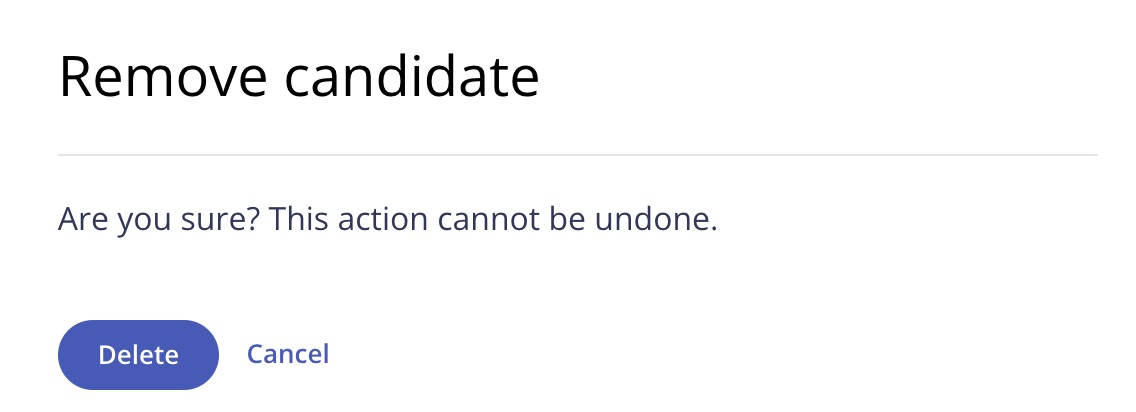
Remove candidate - You can remove the candidate from the opportunity if you decide not to move forward with them.
Learn more
Resource Requests and Automatic Task Creation from Job Openings
Embedded Workflows in Opportunities (Job Openings)
Support/Resources
Still have questions about sourcing and recruiting talent? Click Support in the bottom-left corner of Worksuite to contact our Support team, or email support@worksuite.com. Including a link to the page you're on and a screenshot helps us answer faster.
