
Opportunity workflows allow you to set up reusable workflows for current or future talent, so agreements are signed, questionnaires collected and tasks assigned the same way for every candidate.
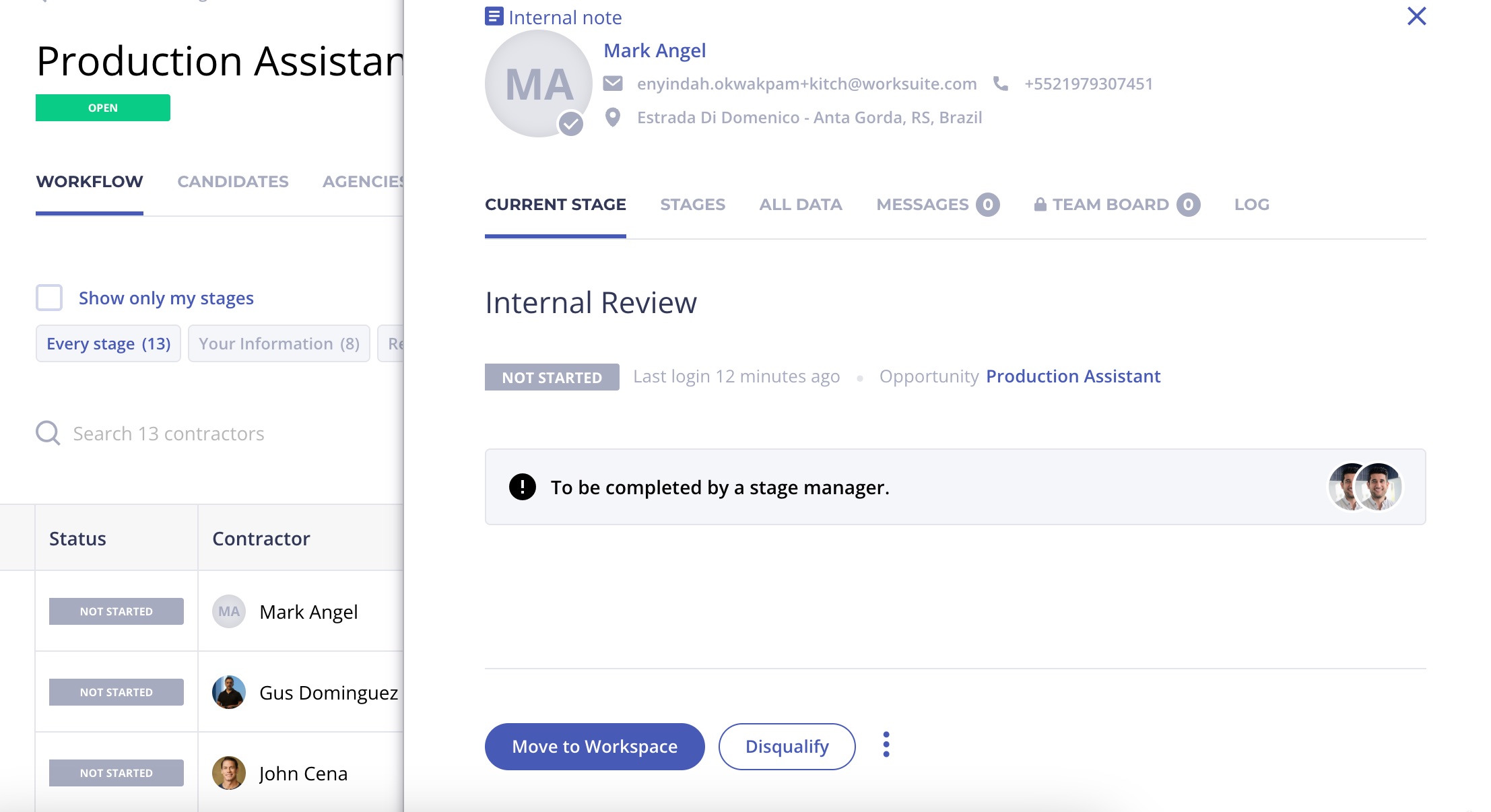
This provides you with an inclusive workspace that allows your team members to take action and view your hiring process directly within an opportunity.
TABLE OF CONTENTS
How to add workflows to opportunities
Step 1: Create workflow templates
- In the left sidebar, go to Workflows > Workflows.
- Click "Create new workflow."

- Build your workflow. See Creating Workflows.
If your team adds candidates who don't have a Worksuite login yet, make the first stage an action stage (Add action stage) with the Send invitation action, so they get an invitation email. Candidates who apply themselves don't need it. If you want to assign work automatically, add an action stage with the Assign task action. If Assign task isn't in the action list, contact Worksuite Support to enable automatic task creation.
- Save the workflow for future use
Step 2: Create a new opportunity
- Go to Marketplace > Job openings and create or edit a job opening.
- In the Workflow field, choose the workflow you built in step 1.
If you don't see the option to select a workflow it means you're using Job Opening/Requests templates and the workflow option is hidden. Contact Worksuite Support to show it. Click Support in the bottom-left corner of Worksuite or email support@worksuite.com.
Step 3: Set the opportunity live
- Click Make live. Candidates who apply will then move through the workflow automatically.

- Your internal team will be notified if there is an action for them to take
Learn more:
Marketplace & Opportunities (Job Openings) - Overview
Resource Requests and Automatic Task Creation from Job Openings
Support/Resources
Still have questions about workflows on opportunities? Click Support in the bottom-left corner of Worksuite to contact our Support team, or email support@worksuite.com. Including a link to the page you're on and a screenshot helps us answer faster.