
Create opportunities for new or existing talent to express their interest in! You can add a workflow to vet candidates and even automate task creation when you find the right candidate for the job!
Opportunities may also be called Job Openings, Requisitions, Marketplace listings or a custom term.
Opportunities are where talent will begin their journey with you and your organization. When creating a new opportunity in Worksuite, you can set up steps that save your team manual work:
- Predefined workflows that collect needed information from candidates
- Standardized vetting processes that help your team collaborate
- Automatic task assignment to selected candidates
TABLE OF CONTENTS
- How to create opportunities
- Interacting with opportunities
- Opportunity filtering and search
- Opportunity templates
- Learn more
How to create opportunities
Step 1: Navigate to the Marketplace tab in the side navigation bar.
- This can be found in your sidebar menu.

Step 2: Select the option to create a new job opening
- Click New job opening at the top right. If your workspace has job opening templates, choose the one you need.
Step 3: Add content
- Job title, Description, Location and Approvers
- Be sure to add a pre-defined workflow. This will help you collect necessary information from the candidate and standardize internal vetting processes.
- If your workspace uses automatic task creation, fill in the task fields. Worksuite creates the task when a candidate reaches the workflow's Assign task stage. See Resource Requests and Automatic Task Creation from Job Openings.
Step 4: Determine visibility
- Click Create job opening. On the Candidates tab, choose Public or Invite only. Public posts the opportunity on your Public Portal when it's live. Invite only keeps it off your Public Portal.
- On the same tab, add talent or groups under Add specific Partner or group. To get a link you can send by email or social media, click Enable link sharing under Use unique link. Depending on your workspace's setup, some of these options may not appear.
Step 5: Set the opportunity live
- If you can publish job openings, click Make live. Otherwise, if the opportunity has approvers, click Request approval: the status changes to Pending, your approvers get an email, and the opportunity goes live when an approver clicks Make live.
Step 6: Review candidate status
- Once the opportunity is made live, the status will change from Draft (or Pending) to Open. You will see the status of invited talent immediately. Invited talent show as Invited until they start their application, then In progress.

Interacting with opportunities
Adding Applicant/Candidate
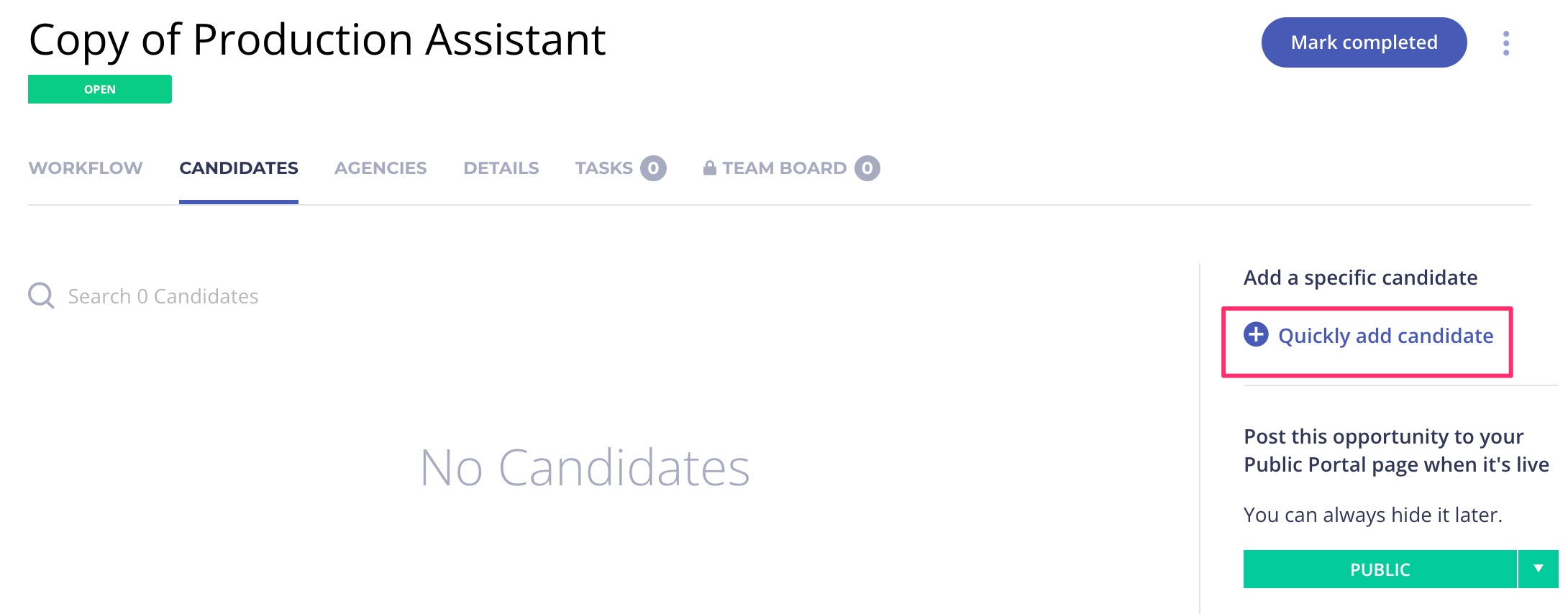
Once the opportunity is live, open it, go to the Candidates tab and click Quickly add candidate, then enter the applicant. While it's still in Draft or Pending, add talent under Add specific Partner or group on the Candidates tab instead (see Step 4: Determine visibility).
Once the opportunity is live, you can also click the three dots at the top right and choose Add candidate.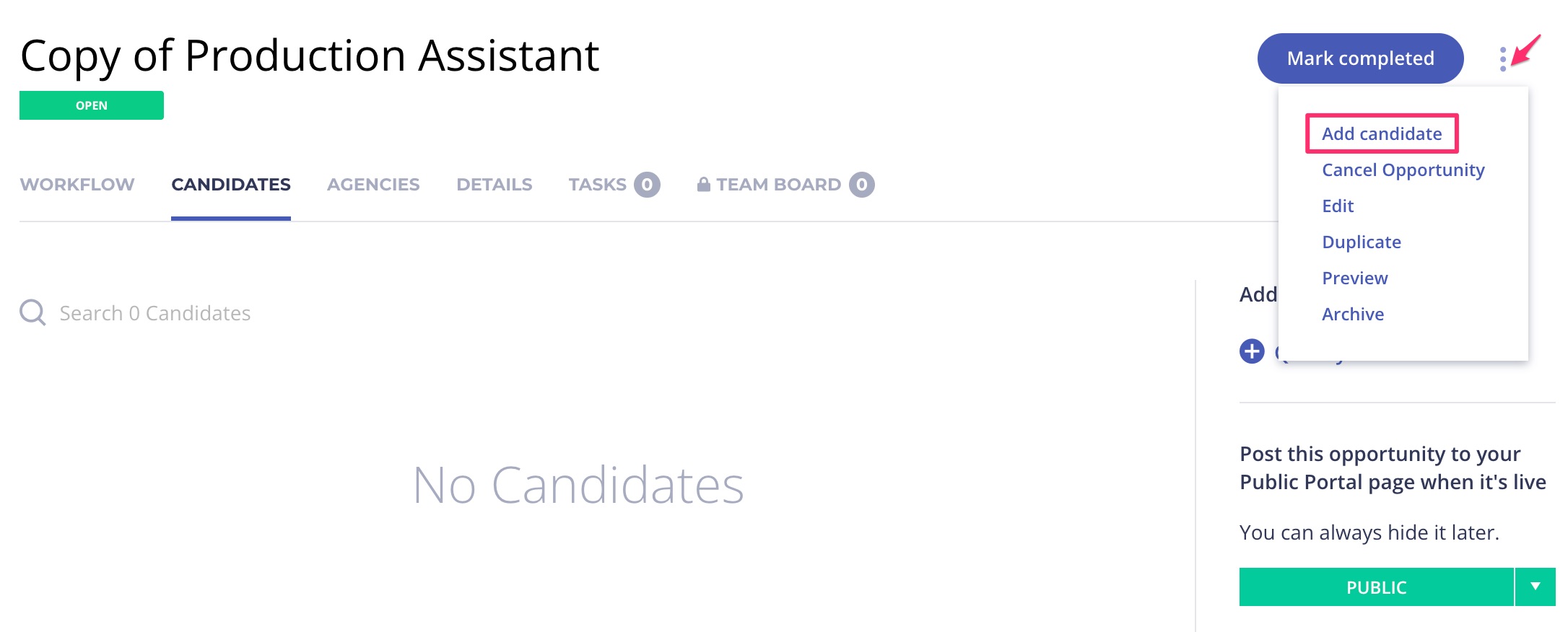
Opportunity Status
Below is a brief description of each status an opportunity can have:
Draft —An opportunity will be in Draft status when it is created initially and is not made live. The draft status indicates that the opportunity is not yet live for candidates to apply.
Pending—The opportunity is waiting for an approver to make it live.
Open—As soon as you make the opportunity live, it will be in Open status. This status indicates that it is live for applicants to apply.
Completed —The opportunity will be in completed status once the candidate selection is complete and the position is closed.
Cancelled - The opportunity was cancelled. Candidates will not be able to continue the application.
Archived - Archiving hides the opportunity. Usually, it's done after the job opening is completed.
Opportunity filtering and search
Opportunities can be searched using keywords. This powerful feature allows you to narrow your results based on text found within the opportunity (such as the Title, Description, and other key fields).
Filters let you narrow the list by attributes such as location or status. You can also save your search for quick reference in the future!
Saving your search is a great feature to improve your efficiency for searches you perform often!
Opportunity templates
Opportunity templates are designed to increase efficiency by saving frequently used opportunities for repeat use in the future. They can be used for new talent recruitment, task assignment, and contract re-evaluation, among other applications.
Worksuite sets up job opening templates for you.
Saved templates are available when you create a new job opening.

If you need a job opening template created or changed, contact Worksuite Support.
Learn more
Resource Requests and Automatic Task Creation from Job Openings
Embedded Workflows in Opportunities (Job Openings)
Support/Resources
Still have questions about creating an opportunity? Click Support in the bottom-left corner of Worksuite to contact our Support team, or email support@worksuite.com. Including a link to the page you're on and a screenshot helps us answer faster.