
How to Add New Projects and Tasks in Worksuite
Tasks and Projects help you organize and assign work to your external talent. Once you create a project, tasks can be added and assigned to your talent. You can even track milestones and create invoices within the task!
First, you need to create a new project that will contain all the related tasks. Then you are ready to add tasks, either manually or through automation.
Let's use the example of a simple website design project and associated tasks:

Project name: Website Design

Associated tasks could include:
- Content determination
- Design & build (this could include milestones of providing a few samples to choose from, draft site build, final design sign-off, final build, etc.)
- SEO review
TABLE OF CONTENTS
How to create a project
Step 1: Open Projects
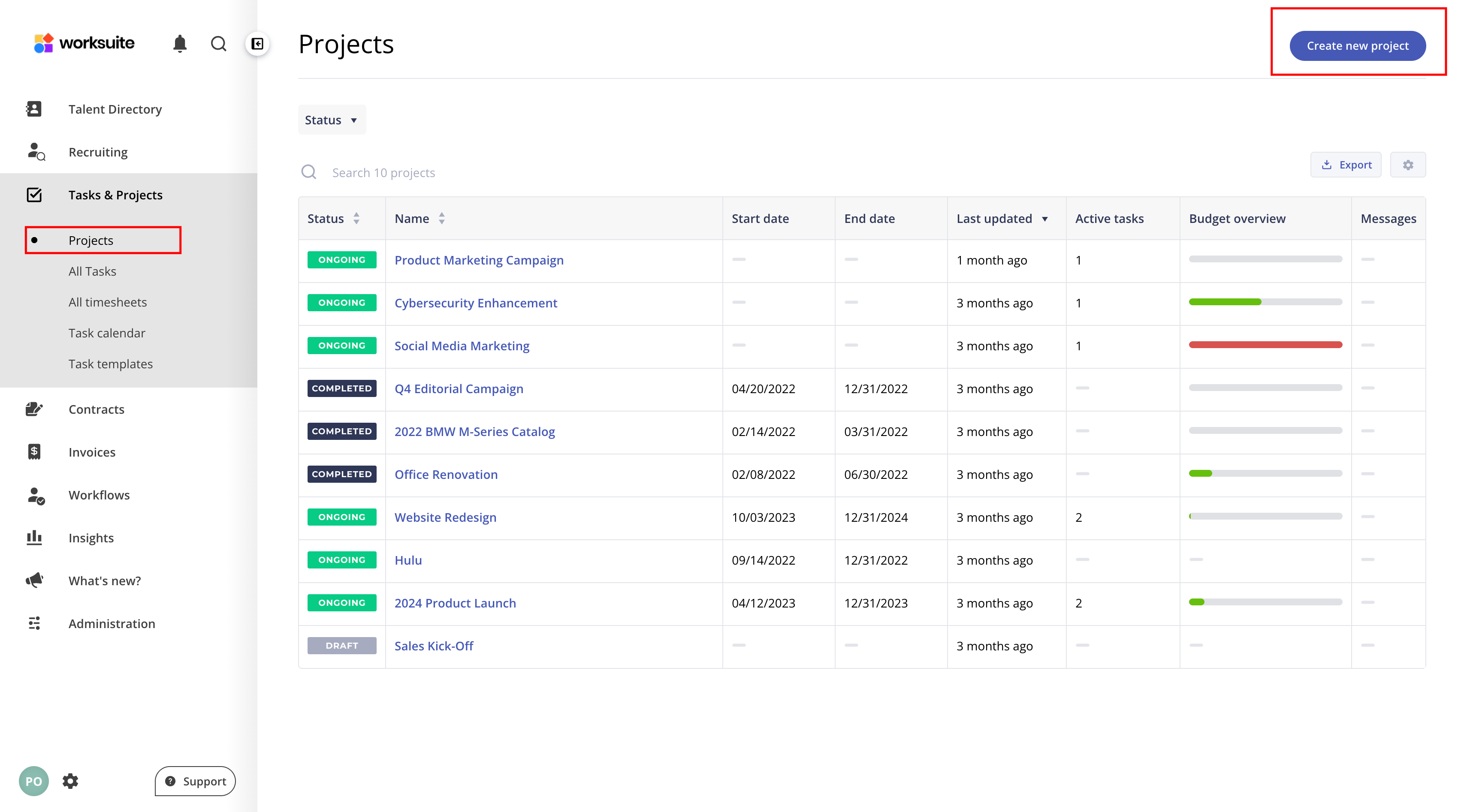
- In the side menu, go to Tasks & Projects > Projects.
Step 2: Select the option to create a new project
- Click Create new project at the top right of the page.
Step 3: Add content
- Project name
- Project description (optional)
- Start/End date (optional)
- Budget (optional)
Click Create project. The project opens and you can add tasks to it.

You can use the project timeline and budget to accurately track the overall progress of the collection of associated tasks.
Your project stays in Draft until at least one of its tasks is made live. It then shows as Ongoing, and as Completed once all its tasks are completed, canceled or archived.

How to create a task
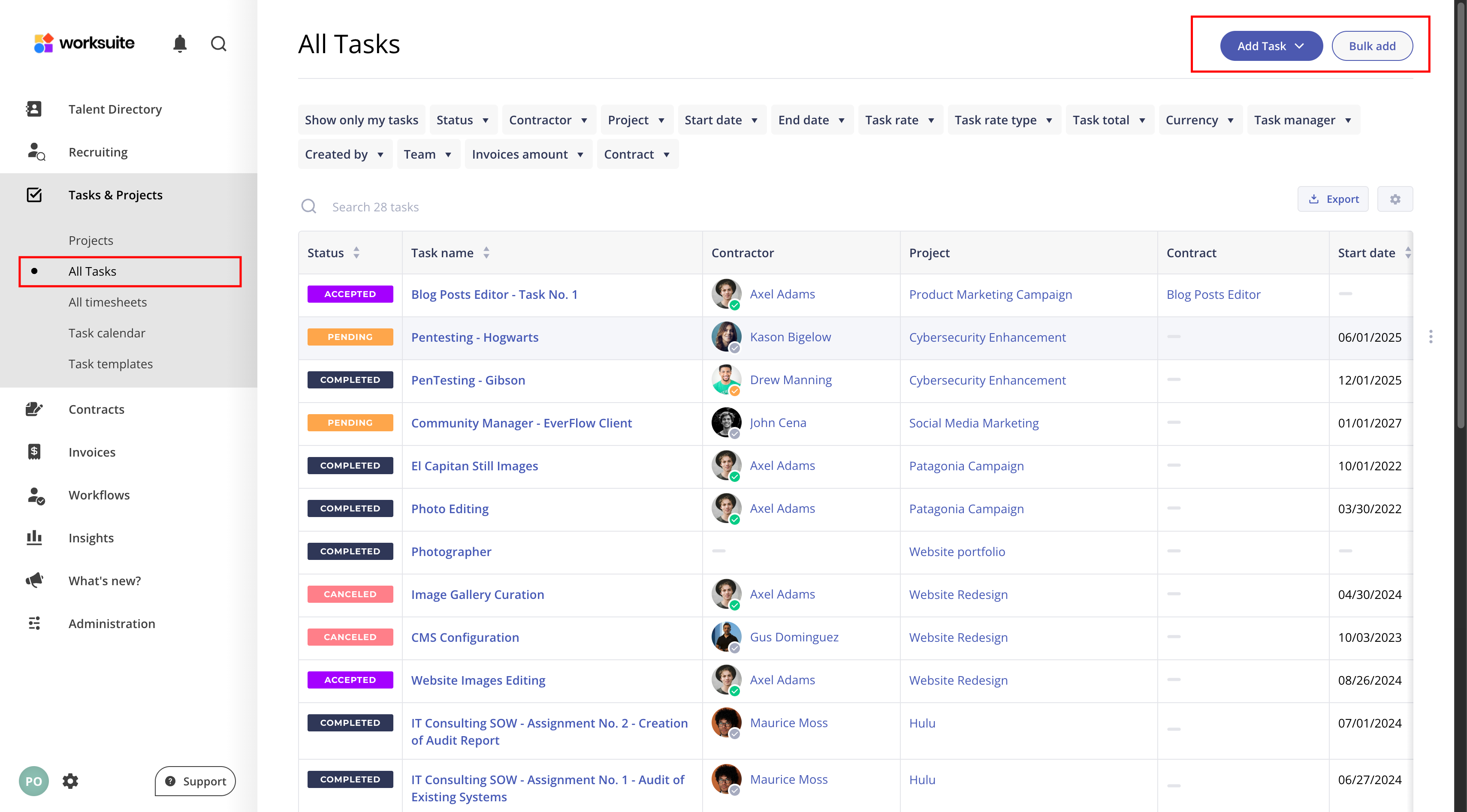
The steps below reflect manual creation of tasks. Tasks can be automatically created by using opportunity workflows. To learn how, see Resource Requests and Automatic Task Creation from Job Openings.
Step 1: Select the option to add a task
- Open the project and click Add Task at the top right of the page.
Step 2: Add content
- Task name
- Task managers (these are individuals within your internal team). Task managers approve invoices on the Task. To change them later, see How to Change or Add Task Managers (Invoice Approvers).
- Task description
- Start/End date
- Assigned talent (once you start typing a name or email, matching options will appear)
- Fee information
- Milestone information (more on this optional feature below)
- Necessary skills
- Custom field information
While much of the content is optional, a more complete task will provide your talent with the information they need to review the task and accept the assignment.
- Click Create task to save it as a draft, or Create and make live to send it to your talent right away.

Step 3: Add milestones (optional)
For details, see Using Milestones & Deliverables in Tasks.
- Milestone name
- Milestone description (optional)
- Milestone deliverables (optional)
- Milestone managers (optional)
- Milestone fee (optional)

Support/Resources
Still have questions about adding projects and Tasks? Click Support in the bottom-left corner of Worksuite to contact our Support team, or email support@worksuite.com. Including a link to the page you're on and a screenshot helps us answer faster.