
Building your talent network in Worksuite begins with adding and inviting talent. This guide outlines various methods to incorporate talent into your platform.
TABLE OF CONTENTS
- Sending Invitations
- Bulk Invitations
- Invitation Links
- Bulk uploading talent
- Organizing Talent with Groups
- Support/Resources
You can add talent to Worksuite using the following methods:
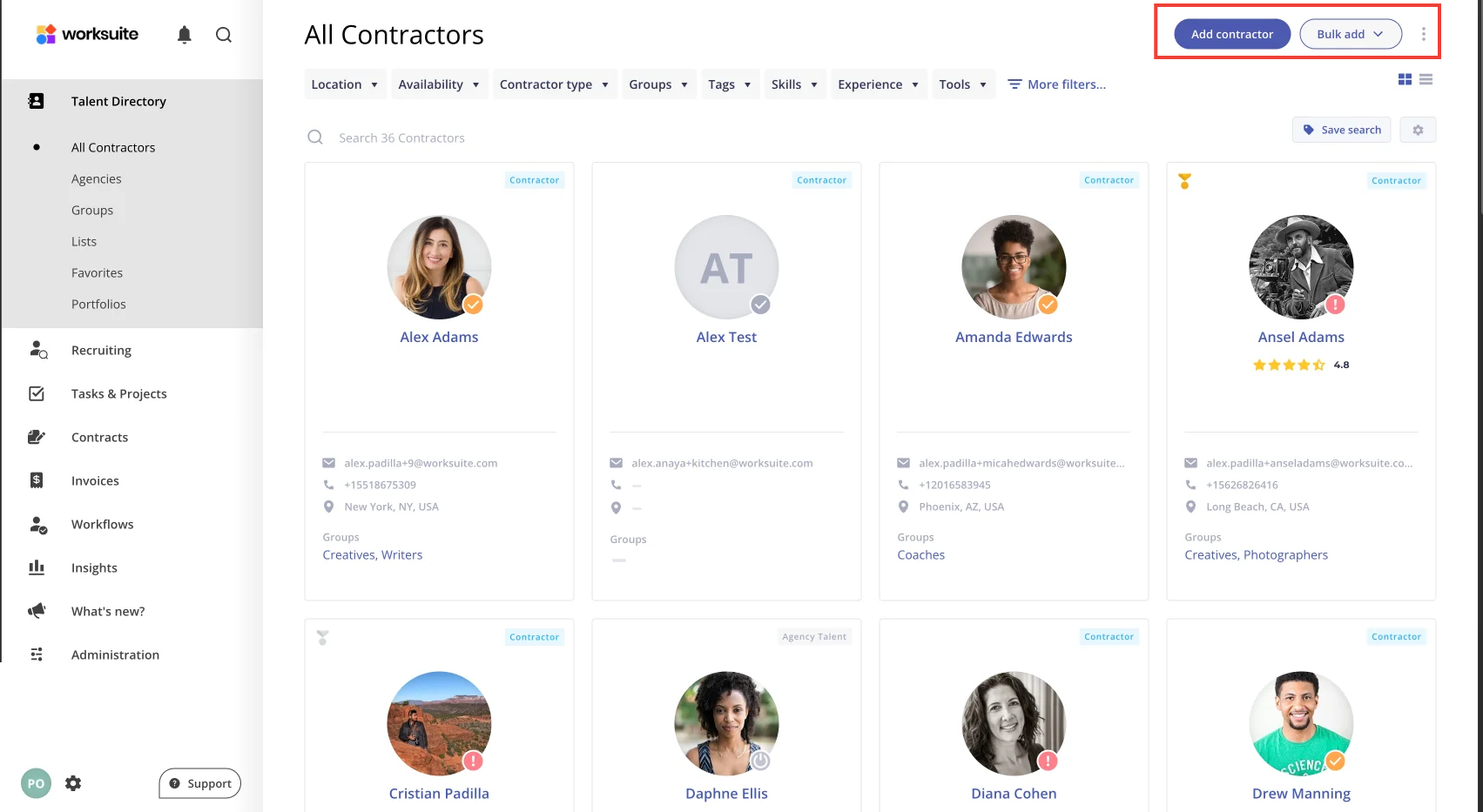
Using the Add partner button (it shows your workspace's term) - Click Add partner to manually enter individual talent details. This method is ideal for adding a small number of people and customizing their information.
Using the Bulk add button - Click Bulk add to upload multiple talent records at once.
Using Invitation Links - Generate an invitation link and share it via email or other communication channels. Talent can use this link to register themselves, streamlining the onboarding process.
Sending Invitations
After adding talent details, you have several invitation options:
Save and Invite Later: Store the talent's information and send an invitation at a later time. To invite them later, open their profile, open the menu next to Edit and select Invite to your Worksuite.
Leave Email partners and invite them to join your Worksuite account turned off (your workspace's term may replace "partners").
Invite Now with Standard Email: Send an immediate invitation using the default template.
For this, turn on Email partners and invite them to join your Worksuite account.
Invite Now with Personalized Message: Send an immediate invitation with a custom message.
Turn on Email partners and invite them to join your Worksuite account, then turn on Use custom welcome message and write your message.
Bulk Invitations
To invite multiple talents simultaneously:
Select the checkboxes in the upper-left corner of the talent tiles you wish to invite.
Use the top bar to select all visible talent if needed.
Click the Invite to your Worksuite icon.
Choose from the invitation options mentioned above. If talent don't receive the invitation, see Your Talent or Team Member Isn't Receiving Worksuite Emails.
Invitation Links
For a personalized approach, create invitation links to send via your email:
Go to Index > All Partners and click Get invite link (if you don't see it, open the ... menu). You can also go to Workflows > Invite Links and click Create new link.
Select the onboarding workflow to associate with this link.
Under Join as, choose the talent type. An agency that joins through a link set to an individual type registers as an individual; to fix it, change its type as described in Set Up Agencies and Agency-Managed Talent.
Optionally, open More options and assign a Relationship Manager.
Optionally, in More options, specify Groups to categorize talent upon registration.
Click Get Link to generate the link.
Copy and paste the link into a custom email from your address.
Bulk uploading talent
Steps to Upload Talent in bulk.
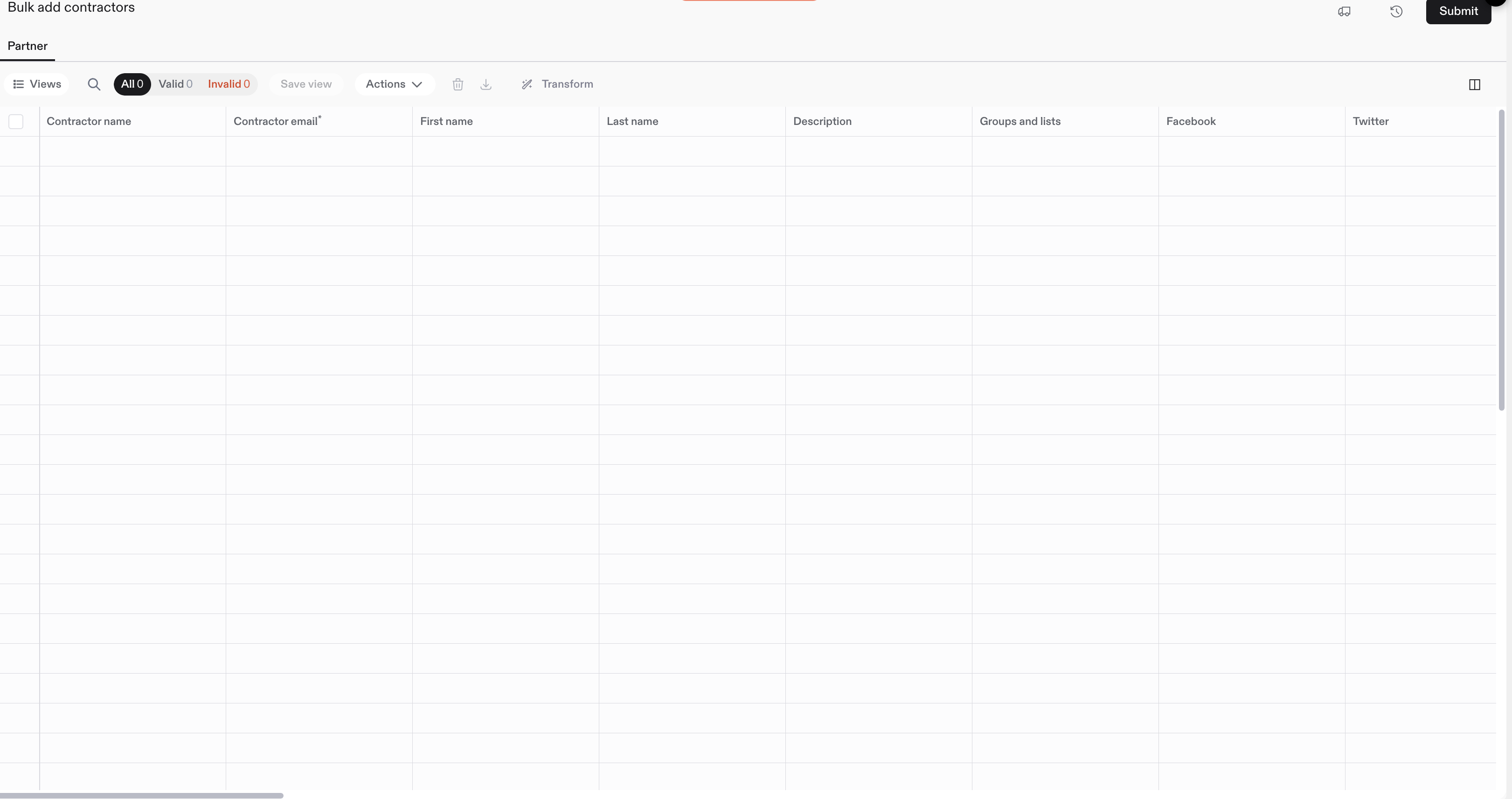
- On All Partners, click Bulk add and choose the talent type.
- Upload a CSV or Excel file.
- Match your columns to Worksuite fields.
- Fix any errors the importer flags, then submit.
- Imported talent are added as Not invited. To invite them, follow the Bulk Invitations steps above.
For field rules and file tips, see Smart Bulk Import (All Modules).
Organizing Talent with Groups
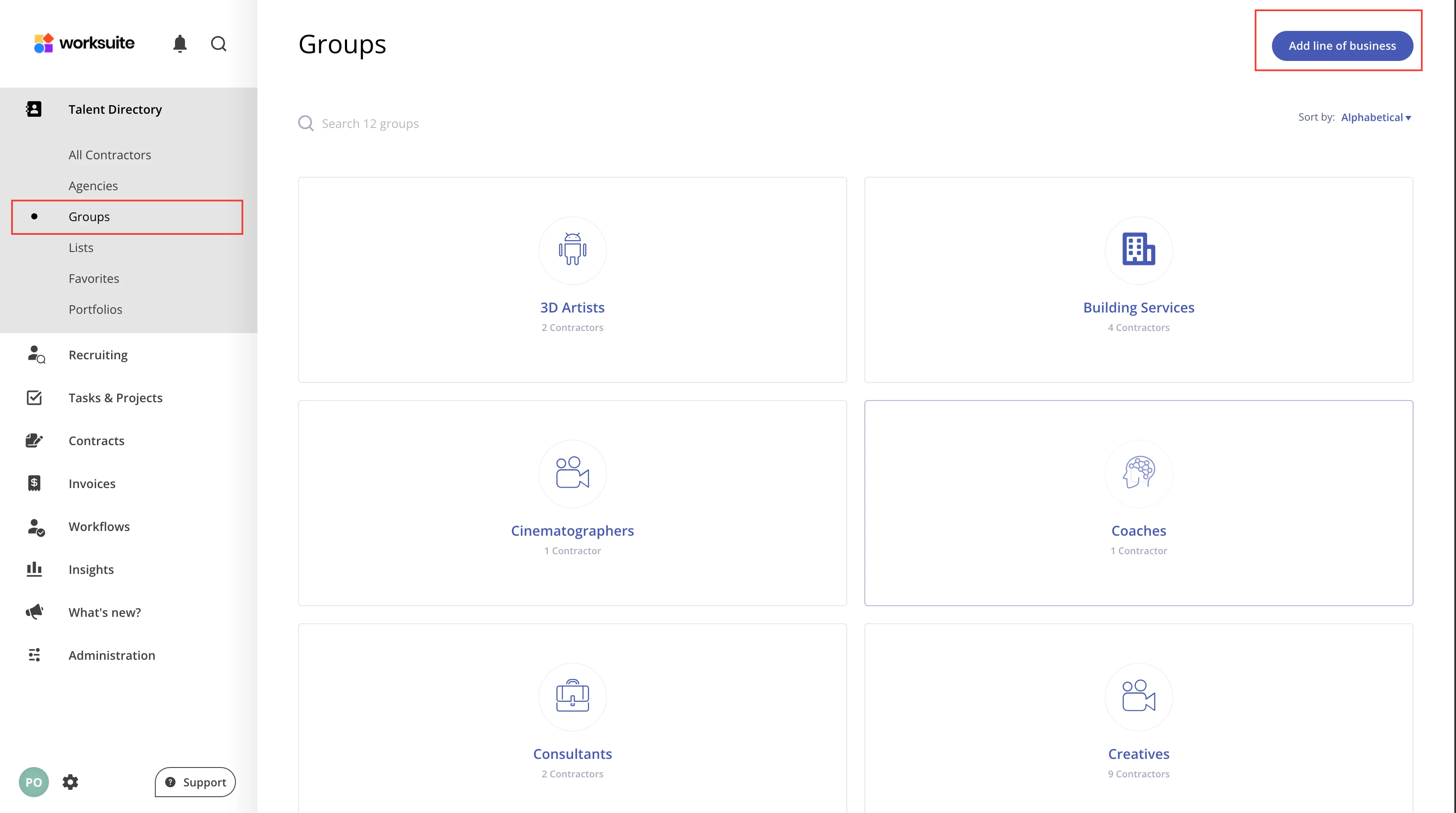
Groups enable efficient organization of talent based on specific criteria such as specialty or location. Talent can belong to multiple groups, facilitating targeted searches. For instance, a software developer in New York might be included in both "Software Developers" and "New York" groups. Learn more about creating and managing groups here.
Next up: Editing Talent Profiles and Portfolios
Support/Resources
Still have questions about adding and inviting talent? Click Support in the bottom-left corner of Worksuite to contact our Support team, or email support@worksuite.com. Including a link to the page you're on and a screenshot helps us answer faster.