
Managing and Updating Talent Profiles and Portfolios in Worksuite
There will always be times when you've learned that your current talent has updated information, status, or portfolio items. Rather than requesting that they access their dashboard to update their profile, you can edit their profile yourself to reflect the most current information.
Note that Talent may also be referred to as partners, vendors, freelancers, contractors or a custom term determined by your account administrator.
TABLE OF CONTENTS
Editing Profiles

The more detail in a talent's profile, the better.
Both the internal user and the talent can update the profile, making it a robust source of information to help you select the ideal talent.
Actions
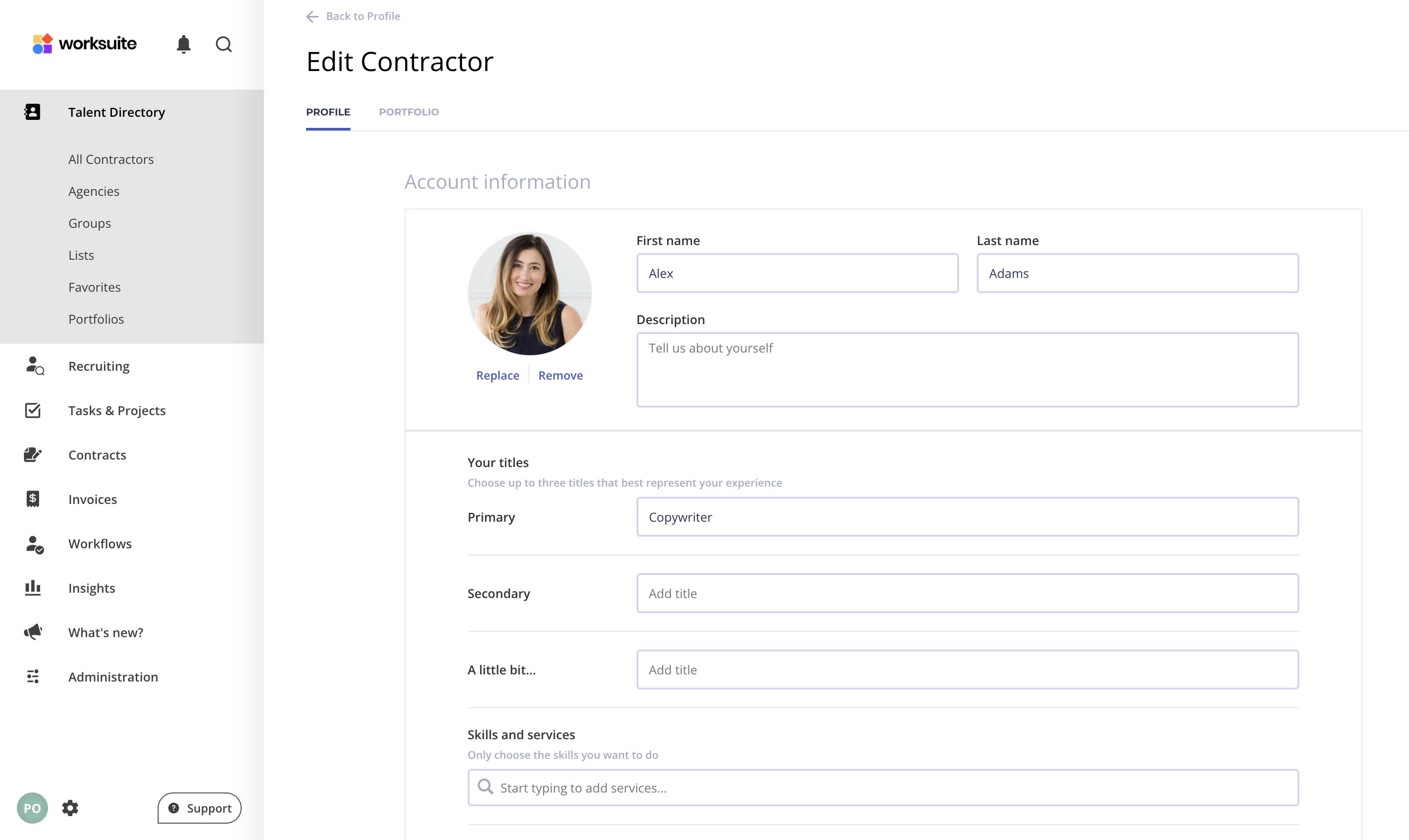
In the talent's profile, you can:
- Identify their talent type (ex. freelancer or company)
- Add a short description of the talent
- Populate data fields (default and custom)
- Add links to websites and social media accounts
- Update contact information. For talent who have registered, this changes the contact email on the profile, not the email they log in with. See How to Change the Login Email for Your Talent or Team Members.
- Create/edit the portfolio (when applicable)
How to edit profiles
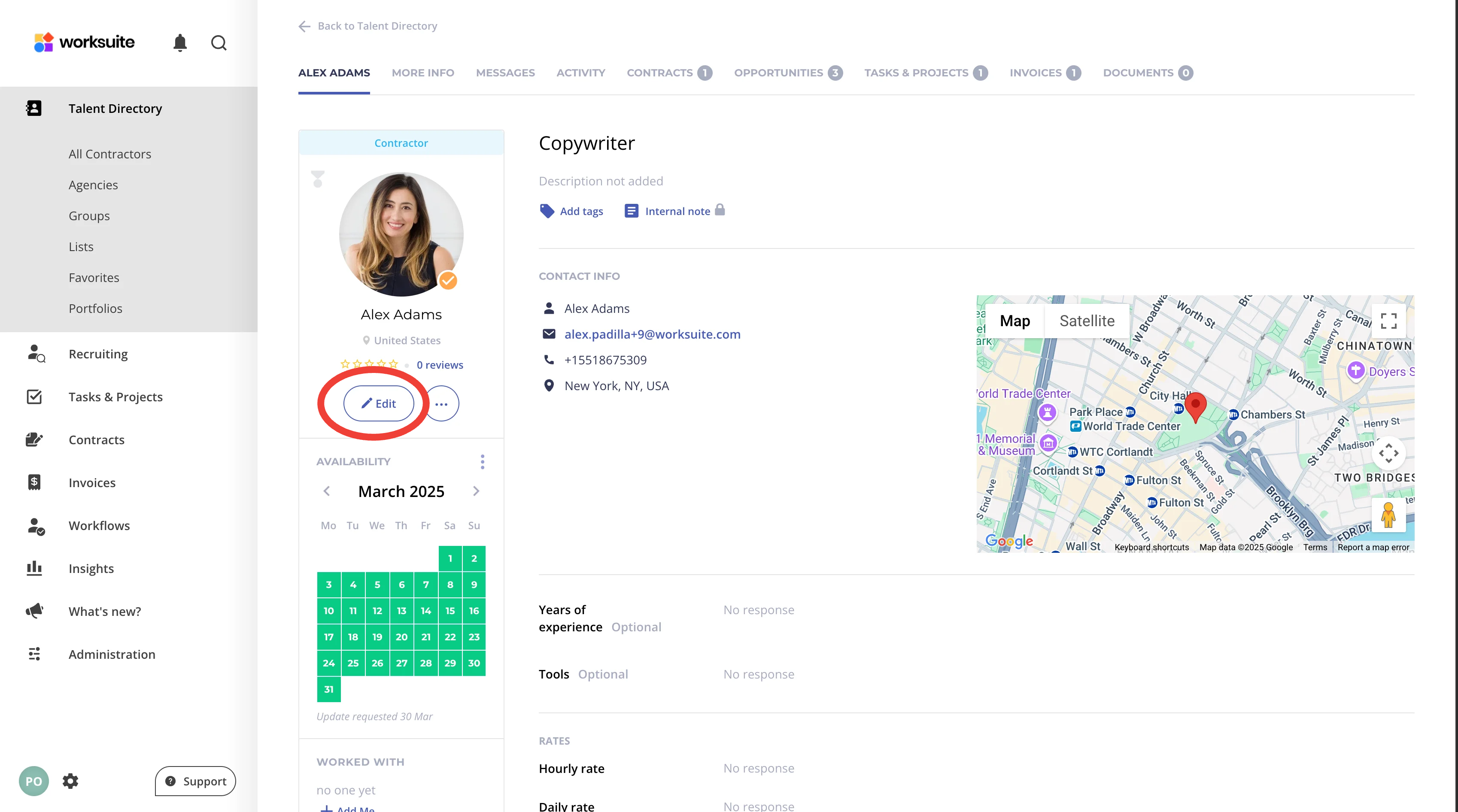
- Go to Index > All Partners (your workspace may use different names) and open the talent you want to edit.
- Click Edit below the talent's name (or click the three dots next to it and select Edit profile information) to update the profile details, avatar and portfolio. If you don't see Edit, ask your admin for permission to edit talent profiles. If your workspace doesn't allow editing talent profiles, contact Worksuite Support to enable it.
Editing Portfolios

Portfolios enable you to evaluate your talent's quality of work - at a glance. Ideally, your talent is updating and managing their own portfolios. If you encounter an instance when you would like to update it on their behalf, read below!
Once you click into your talent profiles, their portfolio will be toward the top. If you'd like to see more for each project, select View complete portfolio.

Portfolio tips
Here are a few things to know about portfolios:
- Images, audio files, PDFs and video links can be added, so you can review work examples without leaving the platform.
- You can preview in the talent's profile or click to view the full portfolio.
- Projects can contain multiple images, audio files, PDFs or videos.
- Feature the best project to bring it to the top and showcase it first
- Your talent can upload their own portfolio, which a user can also edit.
How to edit portfolios
- Navigate to the desired talent
- Click Edit below the talent's name
- Select the Portfolio tab
- Either add a new project or edit existing projects.

Support/Resources
Still have questions about talent profiles and portfolios? Click Support in the bottom-left corner of Worksuite to contact our Support team, or email support@worksuite.com. Including a link to the page you're on and a screenshot helps us answer faster.