
Partner custom fields let you add your own fields to every talent profile, such as the tools someone uses, their hourly rate or a set of diversity questions. Your team finds the information on the profile, and you can collect it during onboarding instead of chasing it by email.
Your workspace may use a different name for Partners, such as Freelancers or Contractors. If it does, this page has that name too, for example Freelancer custom fields or Contractor custom fields.TABLE OF CONTENTS
- Before you start
- Open partner custom fields
- Add a section (optional)
- Add fields to a section
- Collect fields during onboarding
- Limits and good to know
- Troubleshooting
- Related articles
- Support/Resources
Before you start
- Who can do this: admins.
- Availability: the page is in Settings. If you're an admin and don't see it, contact Worksuite Support.
Open partner custom fields
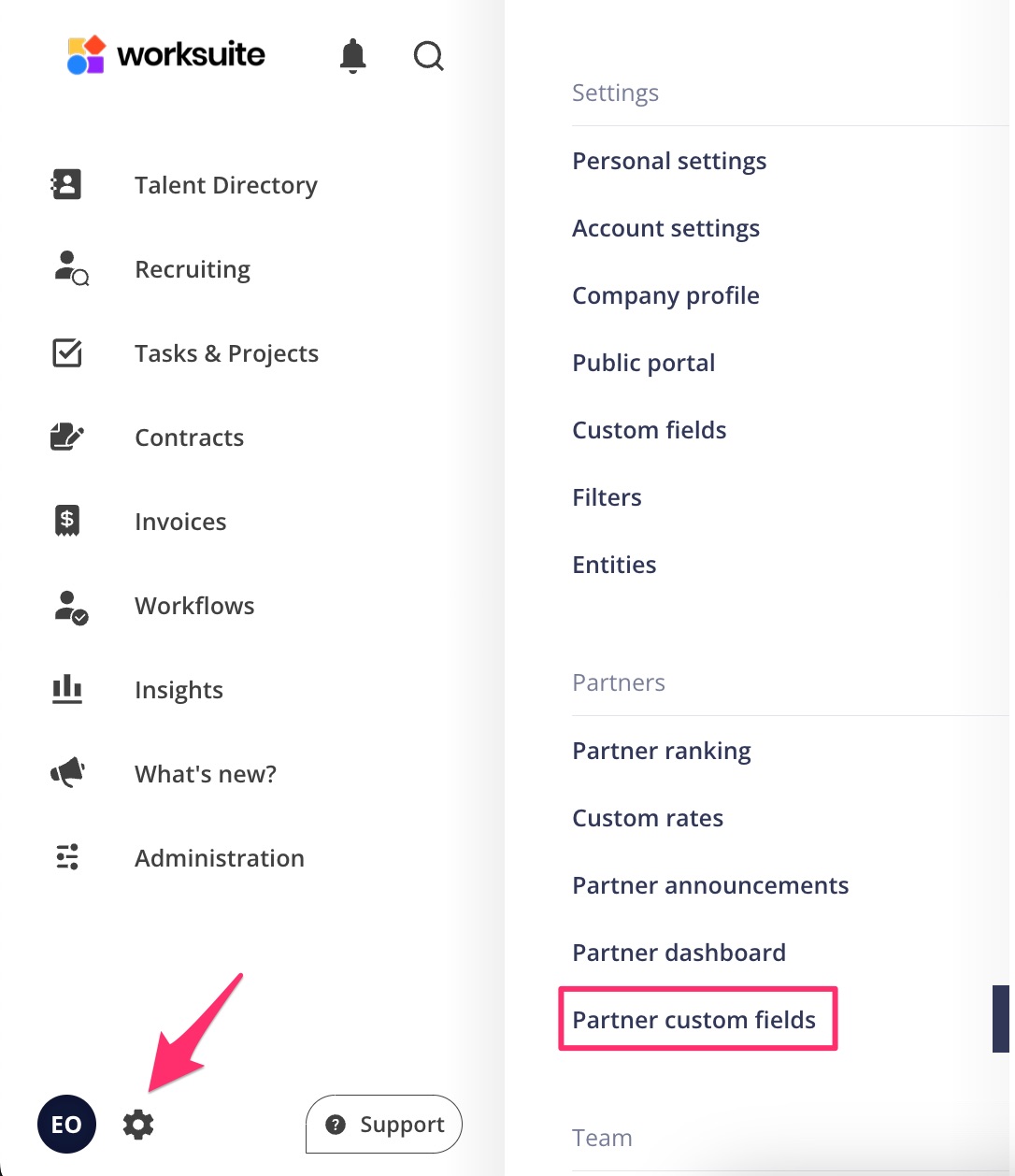
- Click Settings (the gear icon) at the bottom left of the side menu.
- Under Partners, click Partner custom fields.
The page lists your sections and how many fields each one has. Every workspace starts with Main Section. Each section shows as its own group of fields on the talent profile, so you can keep related fields together, for example a "Rates" section with an hourly and a daily rate.
Add a section (optional)
- Click Add new section.
- Enter a Section Name (up to 100 characters).
- Click Add.
You'll see "Custom field section has been added." and the new section appears in the list with "No fields have been added".
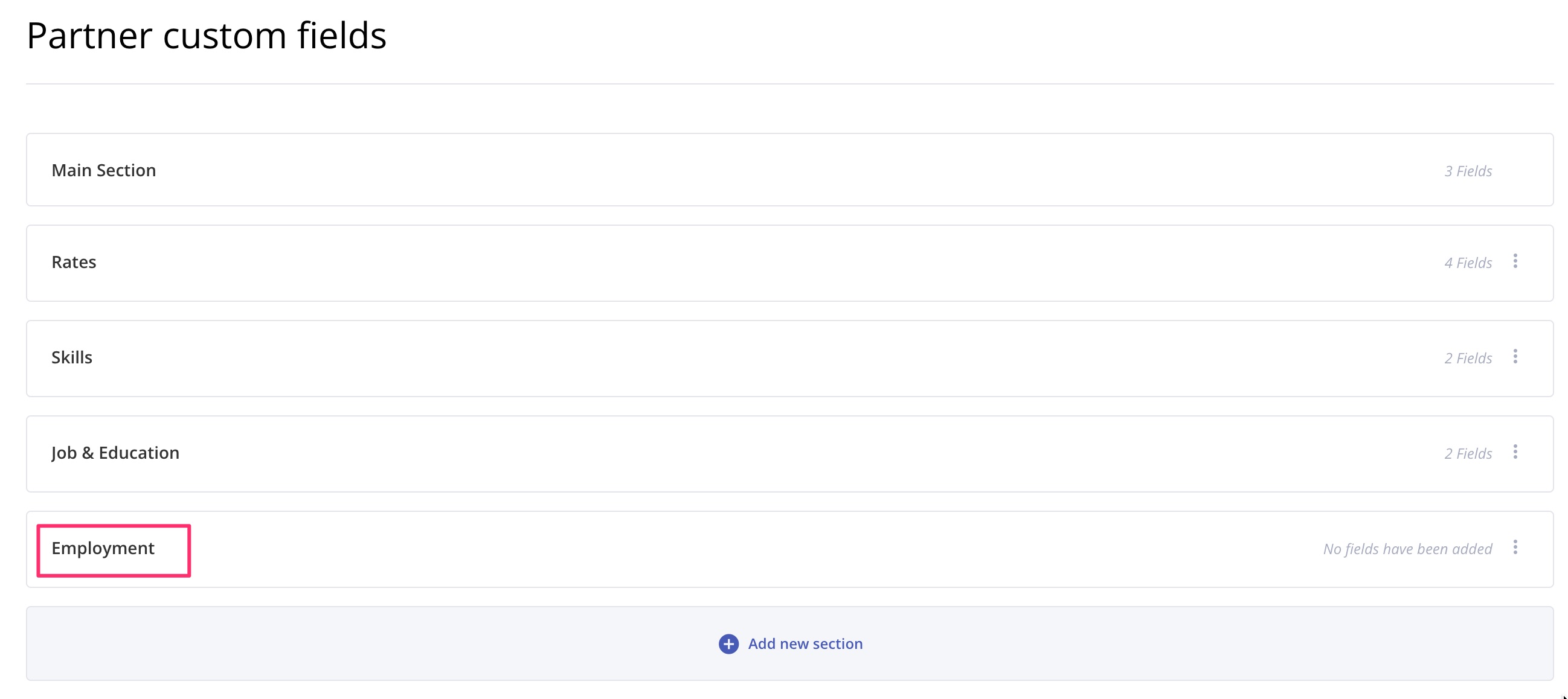
To rename a section, open its actions menu and click Rename. Main Section can't be renamed or deleted.
Add fields to a section
- Click the section to open it.
- Choose the type of field to add, such as a text, number, date, yes/no, choice or dropdown field.
- Enter the field's label. This is the question or name people see on the profile.
- For a choice or dropdown field, add each option.
- Tick or untick Visible to partners, Editable by partners and Mandatory (see the table below).
- (Optional) For text fields, click Add format validation (regex) to check that answers follow a pattern, such as an ID number format.
- If the field shows an OK button, click it to confirm the field.
- Click Save.
The section now shows the new field count. The fields appear on every talent profile. On existing profiles they stay empty until someone fills them in.
| Option | What it does |
|---|---|
| Visible to partners | The talent can see the field on their profile. Untick it to keep the field internal, so only your team sees it. |
| Editable by partners | The talent can fill in or change the value. Only available when the field is visible to them. |
| Mandatory (shown as Required in some workspaces) | The field must have a value when the profile is saved. |
Collect fields during onboarding
To ask your talent for these details while they onboard, add the fields to a workflow:
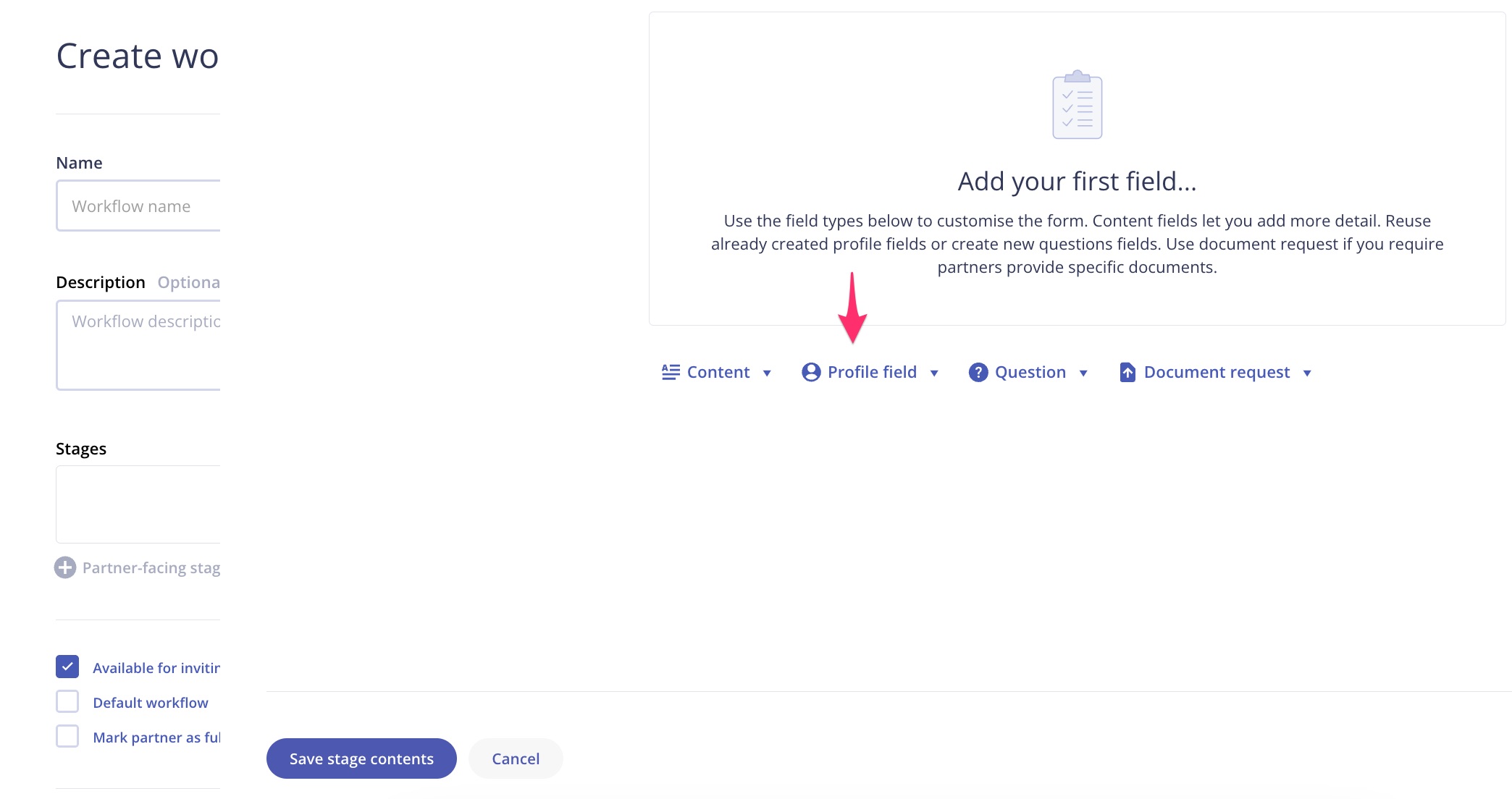
- Open the workflow and add or edit a Request data stage.
- In the stage, click Profile field and choose your custom field.
- Save the stage, then click Save workflow.
If a field is mandatory on the profile, mark it mandatory in the workflow stage too. The setting on the profile doesn't carry over to the stage. For more on stages, see Creating Workflows.
Limits and good to know
- Dropdown and choice options: you can add new options to a dropdown yourself. To rename or remove an existing option, contact Worksuite Support.
- Talent types: new fields apply to all talent types, such as freelancers, candidates and businesses. To show a field only for some talent types, contact Worksuite Support.
- Unique labels: two partner custom fields can't have the same label.
- Fields used in workflow conditions: you can't delete a field that a stage entry condition uses. Remove the condition from the workflow first.
Important: Deleting a section deletes every field in it and removes those fields from all talent profiles. To delete a section, open its actions menu, click Delete and confirm.Troubleshooting
I don't see Partner custom fields in Settings Only admins see this page. Look for your workspace's own term, such as Freelancer custom fields. If you're an admin and still can't find it, contact Worksuite Support.
I can't edit or remove a dropdown option You can't edit or remove existing options on this page, but you can add new ones. To rename or remove one, contact Worksuite Support.
Related articles
- Creating Workflows: add Request data stages that collect profile fields.
- Editing Talent Profiles and Portfolios: update the details on a talent profile.
Support/Resources
Still have questions about partner custom fields? Click Support in the bottom-left corner of Worksuite to contact our Support team, or email support@worksuite.com. Including a link to the page you're on and a screenshot helps us answer faster.