
Some clients require you to have insurance before you can start an assignment. If so, your onboarding will include a 1099 insurance stage (often called 1099 Insurance Purchase). This guide shows what the stage looks like and how to complete it.
Your client decides which insurance is required. It can be Workers' Compensation, General Liability, or both. You'll see one section for each required policy.Your Options
For each required policy, you choose one of these options:
- Upload a proof of insurance: use a policy you already have. You upload your Certificate of Insurance (COI) and your client reviews it.
- Buy a new insurance policy via 1099policy.com: get covered through our partner, 1099Policy. Depending on your client, this option may show the price, or say that your client or agency will pay for the policy.
- Reuse your active 1099Policy coverage: if you already bought a 1099Policy policy for a previous assignment, you may be able to apply it to this one.
How to Upload Your Own Proof of Insurance
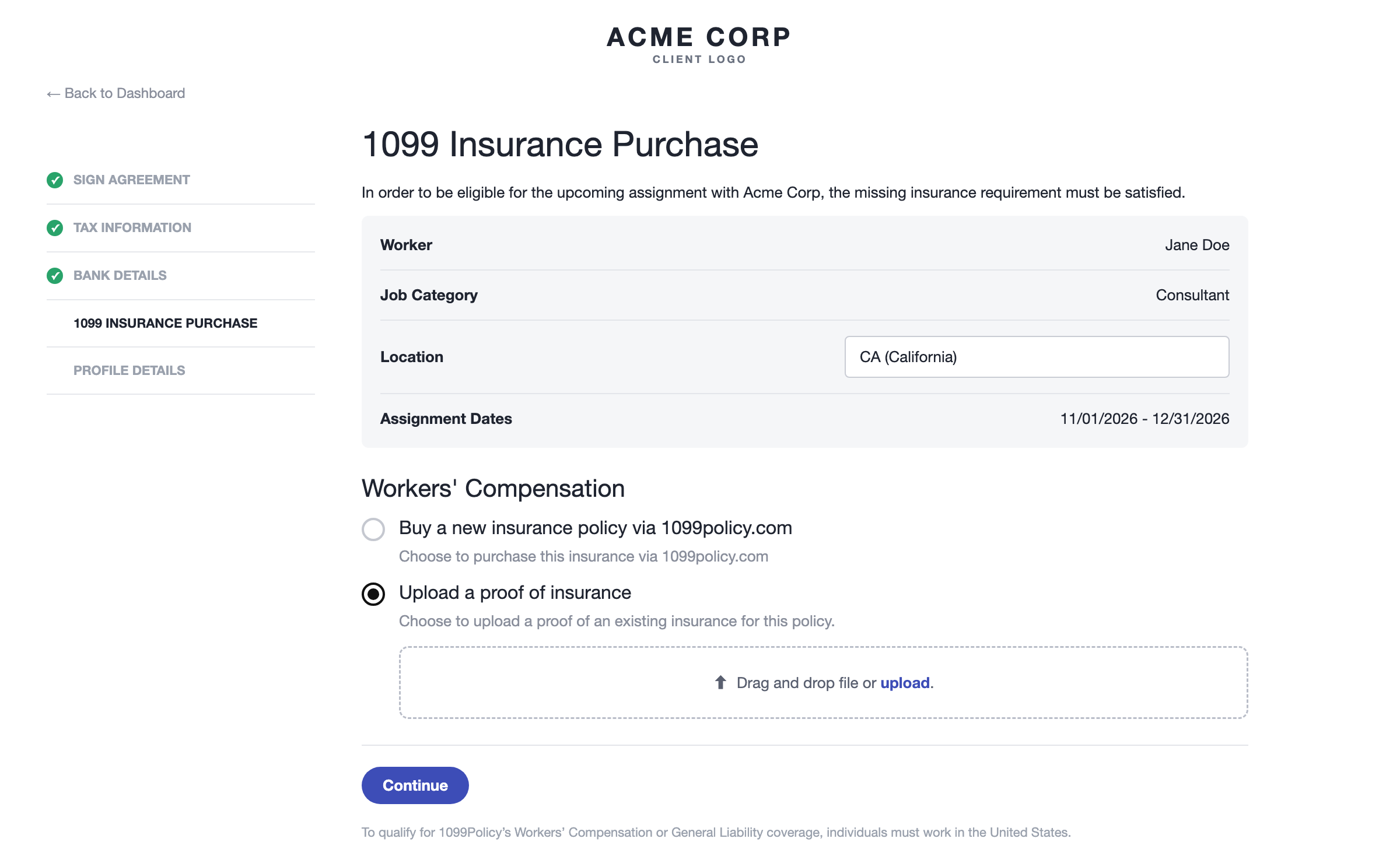
- Open the 1099 Insurance Purchase stage from your onboarding email link or your dashboard.
- Check your details at the top: worker name, Location and Assignment Dates. If you change anything, click Save.
- Under the policy (for example, Workers' Compensation), select Upload a proof of insurance.
- Drag your COI into the upload box, or click upload to choose the file.
- Click Continue.
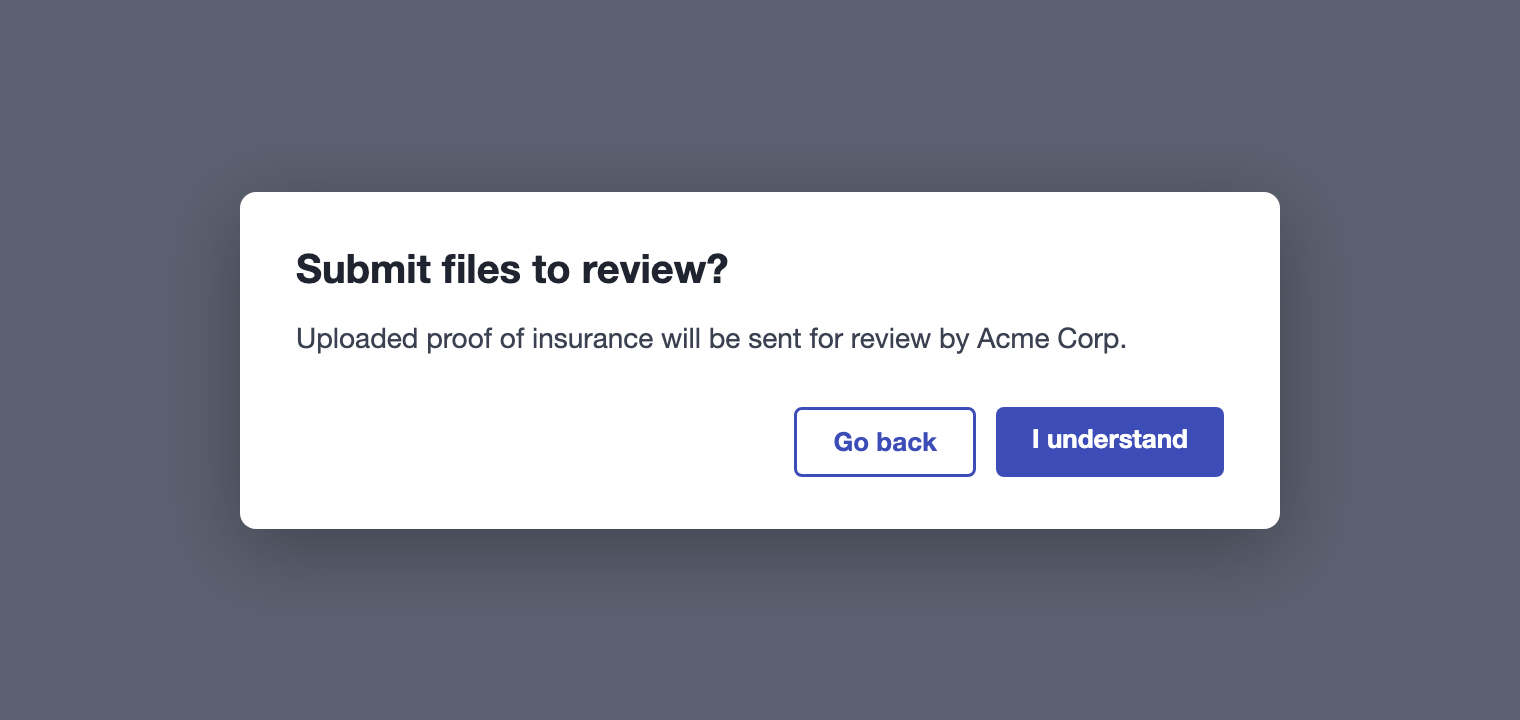
- In the Submit files to review? window, click I understand.
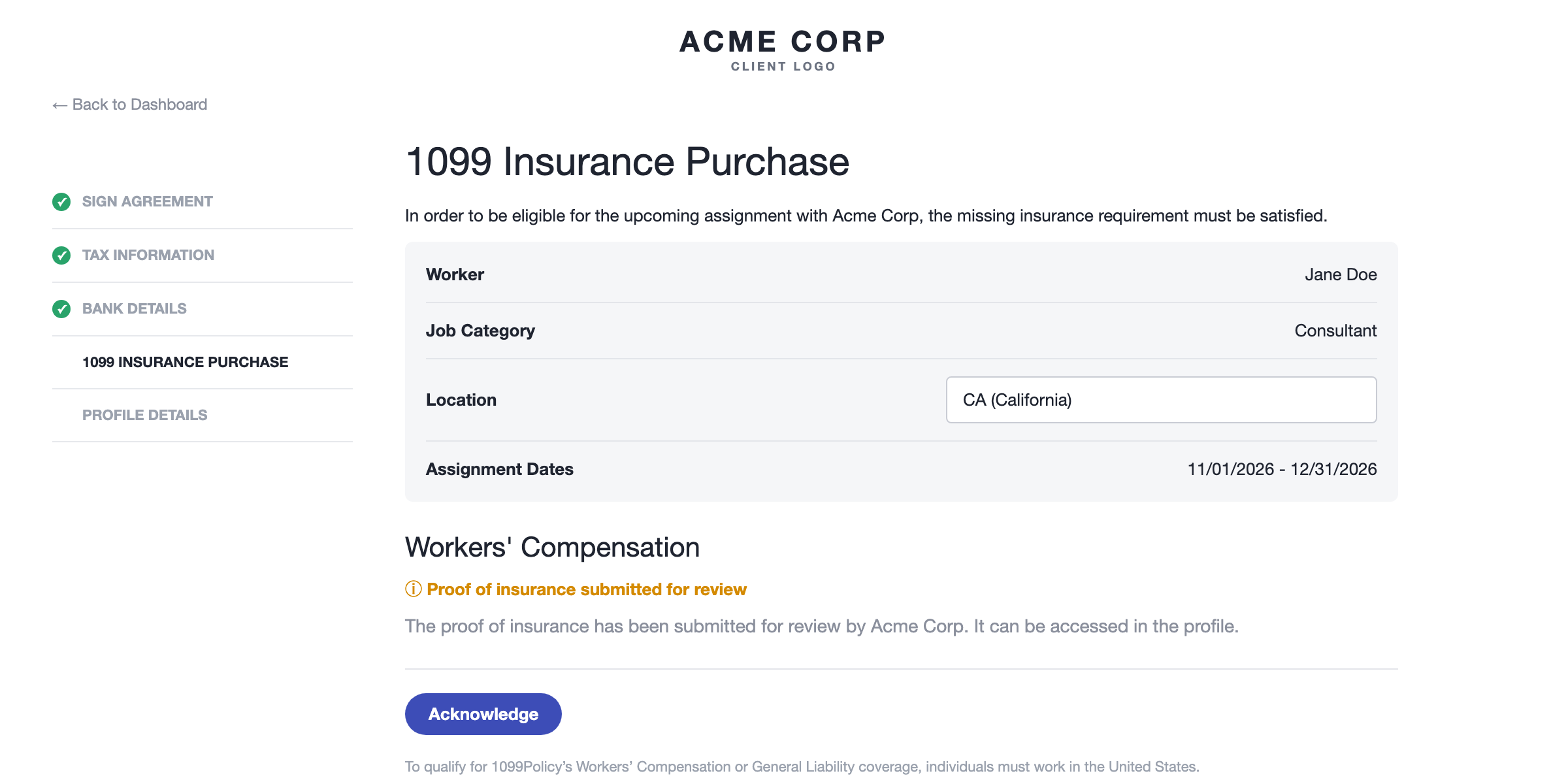
- You'll see Proof of insurance submitted for review. Click Acknowledge to move to your next onboarding stage.
Note: The certificate must be in the name of the worker doing the job. If you're a talent agency or company representing a creator or freelancer, make sure the COI is in that person's name.How to Buy a Policy Through 1099Policy
- Select Buy a new insurance policy via 1099policy.com (or the "Get insured via 1099Policy" option, if your client or agency is paying).
- Click Opt in for the missing insurance policies and confirm.
- You'll be redirected to 1099policy.com to finish the purchase. Once it's complete, the stage updates automatically.
Once you opt in to 1099Policy for a policy, you can't upload your own proof of insurance for that same policy. If you already have insurance, choose Upload a proof of insurance instead.After You Submit
Accepted: the stage shows that your proof of insurance has been accepted. You can find the file in your profile.
Rejected: the stage shows Proof of insurance rejected and the reason. Once your client reopens the stage, click Retry. You can then upload a corrected certificate or choose to buy a policy through 1099Policy instead.
Good to Know
- 1099Policy coverage is only available for work done in the United States.
- If you work in North Dakota, Ohio, Wyoming or Washington, you must upload your own proof of insurance. Buying through 1099Policy isn't available in those states.
- General Liability coverage through 1099Policy isn't available in Hawaii.
- If you see a message that the assignment is set in the past or ends soon, contact your client so they can check the assignment dates.
- To cancel a 1099Policy policy you no longer need, contact support@1099policy.com.
Support/Resources
Still have questions about the insurance stage? Click Support in the bottom-left corner of Worksuite to contact our Support team, or email support@worksuite.com.
For questions about your work, projects or rates, message your client from Messages in Worksuite.