
A Contract workflow runs before a Contract is accepted. Use it for the checks that must happen before anyone signs, so a Contract only goes out once your team has reviewed it. For example:
- Contract terms review
- Internal review
- Compliance review
You build the workflow once, then link it to a Contract template. Every new Contract from that template runs the workflow first.
Who can do this: Admins.
Your workspace may use different names for Contracts, Partners and stages, such as Engagements or Freelancers. This article uses the default names.TABLE OF CONTENTS
- How a Contract workflow runs
- Create a Contract workflow
- Link the workflow to a Contract template
- Edit, duplicate or delete a workflow
- Support/Resources
How a Contract workflow runs
- While the workflow runs, the Contract's status is Under review.
- Your talent can see the Contract once they reach their first partner-facing stage.
- In a Contract workflow, partner-facing stages are set to move on automatically when your talent completes them.
- When the last stage is complete, the Contract moves on to acceptance: signing or accepting, depending on the template.
- If your talent is disqualified in the workflow, the Contract is cancelled.
Create a Contract workflow
- In the left menu, go to Contracts → Contract workflows.
- Click Add Contract workflow. The Create workflow page opens.
- Enter a Name for the workflow.
- Click Partner-facing stage for a step your talent completes, or Internal stage for a step your team completes. You can also click Add action stage for a step that runs on its own.
- Choose the stage type, set it up in the panel that opens and save it. The stage appears under Stages.
- Repeat steps 4 and 5 for each stage, in the order they should run.
- Click Save workflow.
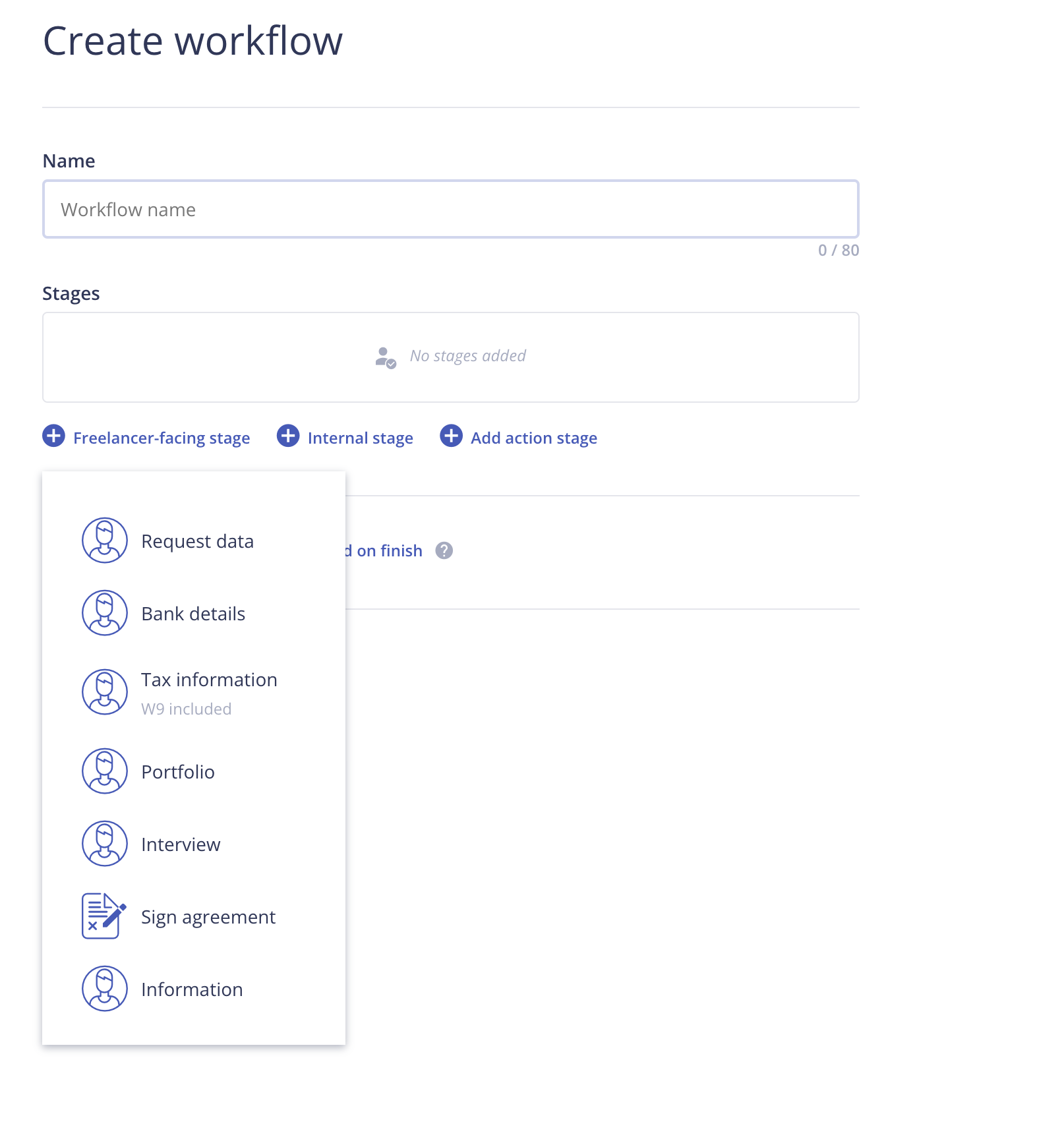
You'll see "Workflow has been added." and the workflow appears in the Contract workflows list. Contract workflows use the same editor as your other workflows. For the stage types and their settings, see Creating Workflows.
Link the workflow to a Contract template
- Go to Contracts → Contract templates and open the template.
- Select the Contract Workflow tab.
- In the Contract Workflow dropdown, choose your workflow.
- Click Save & close.
You'll see "Contract template saved". New Contracts created from this template now run the workflow before acceptance. Only Contract workflows appear in this dropdown, not your onboarding workflows.
Important: You can't change the workflow on a template that has Contracts. To use a different workflow, duplicate the template from the actions menu in Contracts → Contract templates and link the workflow to the copy.Renewals have their own workflow setting. To choose one, open the template's Expiration & Renewal tab and use the Contract Workflow dropdown under Contract renewal. For every tab of the template, see How to Create and Manage Contract Templates.
Edit, duplicate or delete a workflow
In Contracts → Contract workflows, open the actions menu on the workflow's row and click Edit, Duplicate or Delete. Editing a workflow doesn't move anyone who is already partway through it.
Support/Resources
Still have questions about Contract workflows? Click Support in the bottom-left corner of Worksuite to contact our Support team, or email support@worksuite.com. Including a link to the page you're on and a screenshot helps us answer faster.