
Mastering Task Management with Filters in Worksuite
Admins choose which filters appear on the All Tasks list. This article shows how to turn them on and what each one does.
Filter names follow your workspace's terms, so they may differ from the names in this article.
TABLE OF CONTENTS
How to Activate Task Filters: Step by Step
- Go to Settings: Navigate to your account settings within your Worksuite dashboard. Click the gear icon next to your profile picture at the bottom-left of the sidebar.
- Access Filters: Within Settings, click Filters (called Filters and columns on some accounts). This should be on the left-side menu. Only admins see this page.
- All Tasks tab: Select the All Tasks tab. This is where you can enable or disable the task filters according to your preferences. Tick Enable for each filter you want; tick Always visible to show it without opening the filter menu. Optionally set a Filter custom label, then click Save.
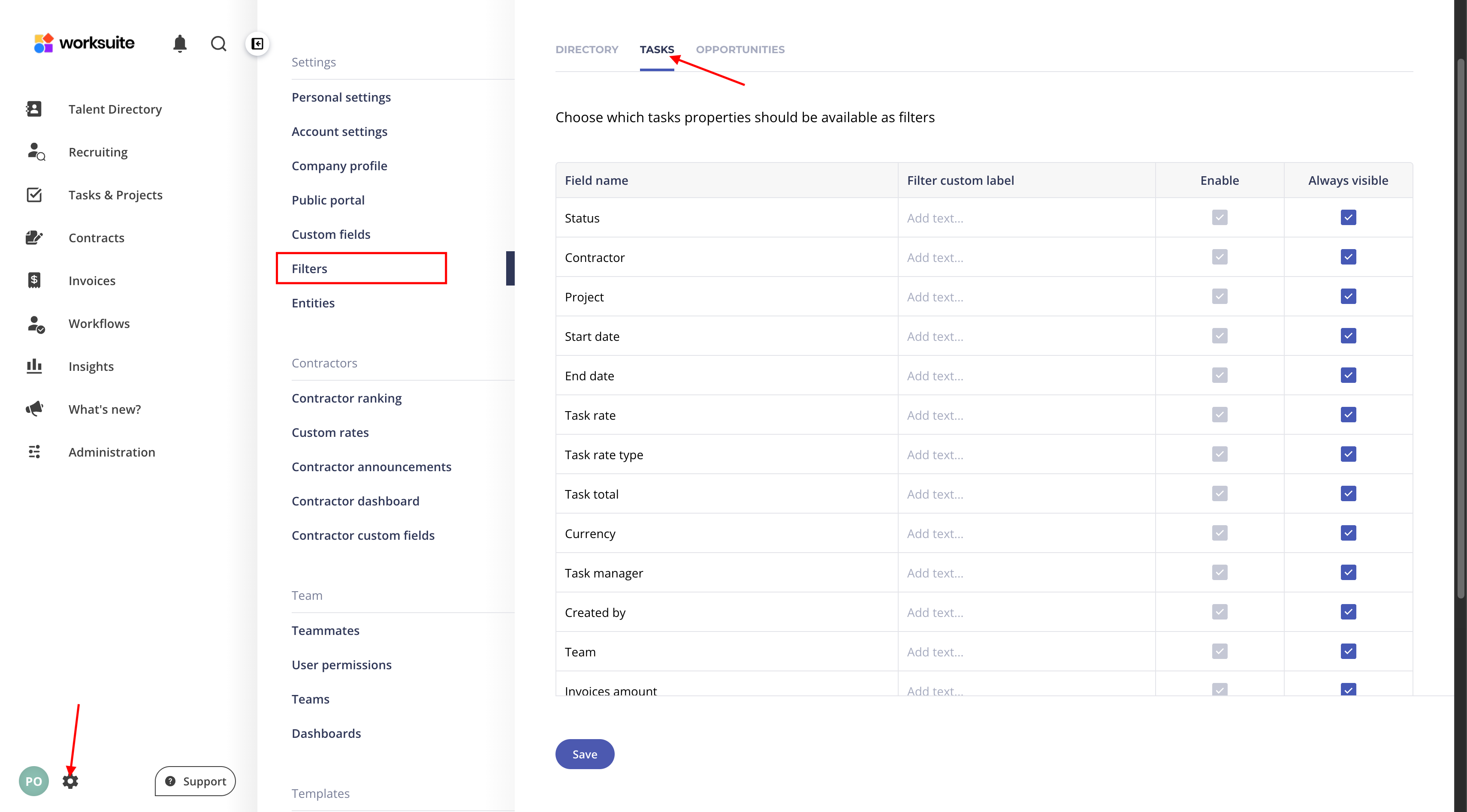
Filters on the All Tasks List
The All Tasks list can show the filters described below. These filters are designed to provide you with more control over your task management, helping you organize your projects and collaborate seamlessly.
Admins can also turn on other filters, such as Status, Currency, Task rate, Task rate type, Task total, Contract and Timesheet approver.
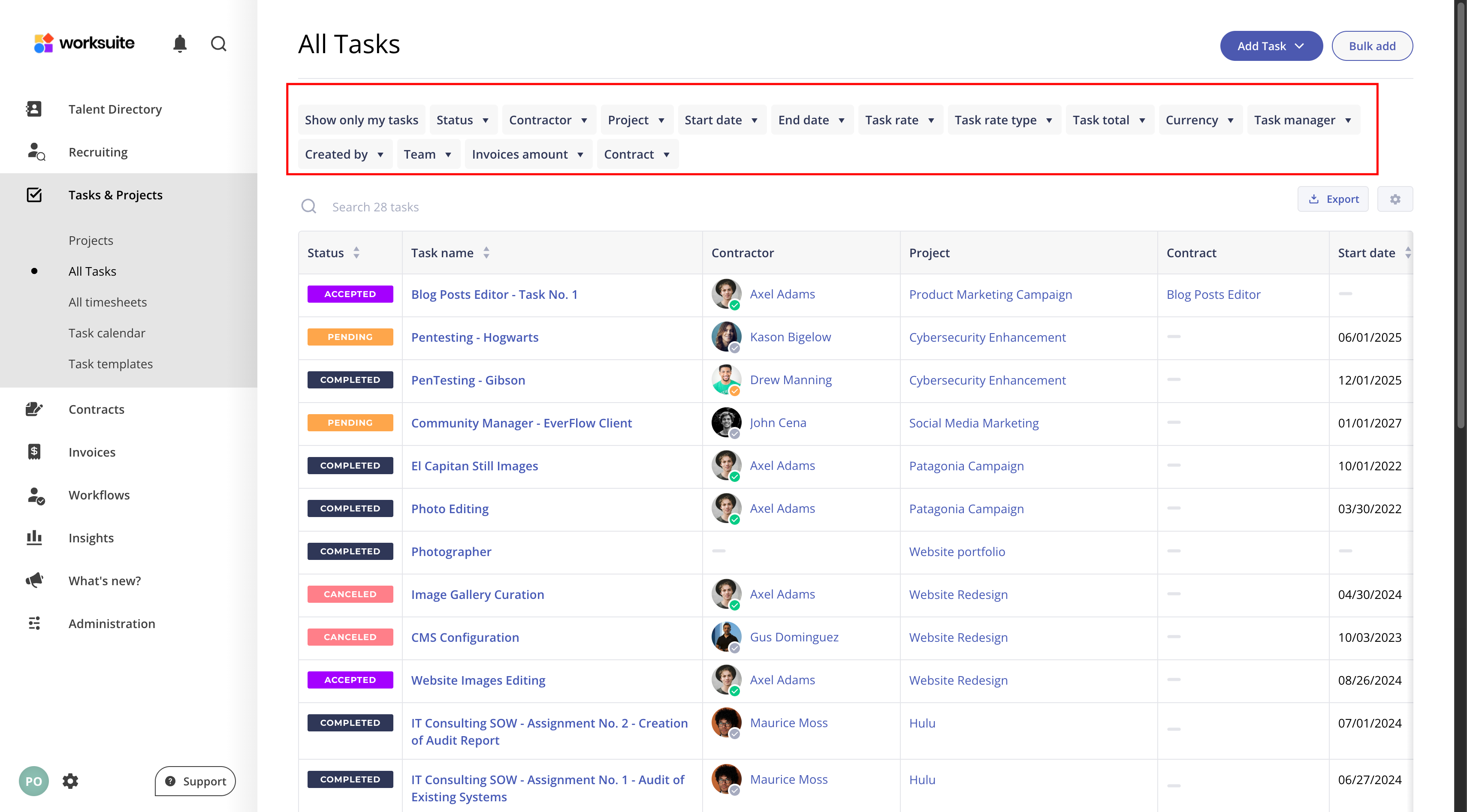
1. Partner Filter
Are you working with a diverse team of freelancers or talents? The Partner filter (your workspace may call it Freelancer or Talent) shows tasks assigned to the people you pick. This filter allows you to gain insights into the progress of tasks assigned to specific team members, making coordination a breeze.
2. Project Filter
Managing multiple projects simultaneously? The Project filter lets you focus on tasks associated with a particular project. Whether you're overseeing a large-scale project or a series of smaller tasks, this filter will help you streamline your project management efforts.
3. Start and End Date Filter
Need to meet deadlines without a hitch? The Start and End Date filter enables you to pinpoint tasks based on their scheduled timelines. Stay on top of your schedule by focusing on tasks that require immediate attention or those that are nearing completion.
4. Task Manager Filter
If you have different task managers handling various aspects of your projects, the Task Manager filter is your go-to tool. Find tasks by their task managers.
5. Created By Filter
Curious about the origins of specific tasks? The Created By filter allows you to see tasks created by specific team members.
6. Team Filter
The Team filter shows tasks that belong to the teams you pick. This filter is perfect for ensuring that each team is aligned with its tasks and responsibilities.
7. Custom Fields Filter
Every organization is unique, and so are their needs. The Custom Fields filter lets you filter tasks based on your custom criteria, ensuring that your task management process is tailored to your specific requirements.
Support/Resources
Still have questions about Task filters? Click Support in the bottom-left corner of Worksuite to contact our Support team, or email support@worksuite.com. Including a link to the page you're on and a screenshot helps us answer faster.