
Getting Started with Workflow Editor 2.0 in Worksuite
Welcome to Workflow Editor 2.0! This guide is designed to help you navigate and utilize the new features effectively, ensuring a smooth and efficient workflow setup tailored to your needs.
TABLE OF CONTENTS
Key Features and How to Use Them
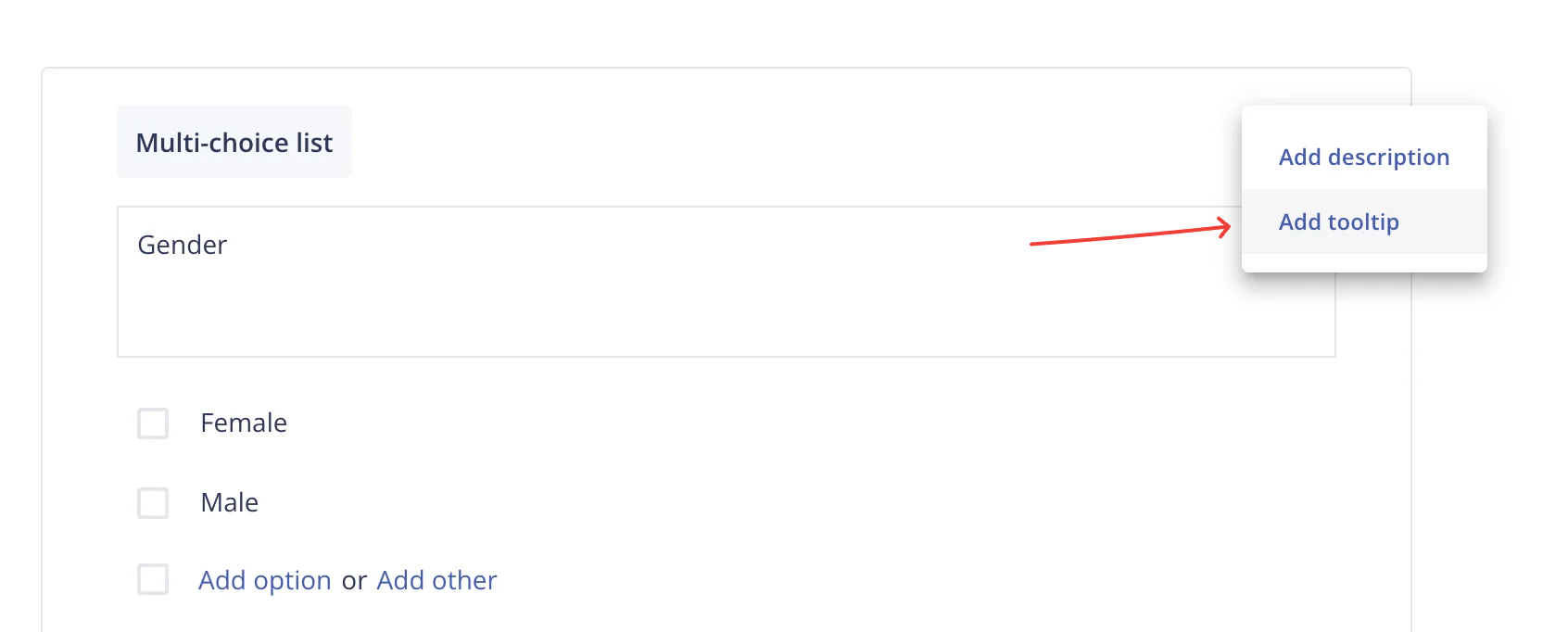
Adding Tooltips and Descriptions to Custom Questions
a) Click on the vertical three dots (⋮) next to the question.

b) Select either "Add Tooltip" or "Add Description" from the dropdown menu.
This feature helps users understand the purpose of each question, reducing confusion and improving response accuracy.
Duplicating Questions in the Request Data Stage
Save time when creating similar questions:
- Within the Request Data stage, locate the question you wish to duplicate.
- Click on the duplicate icon to create a copy.
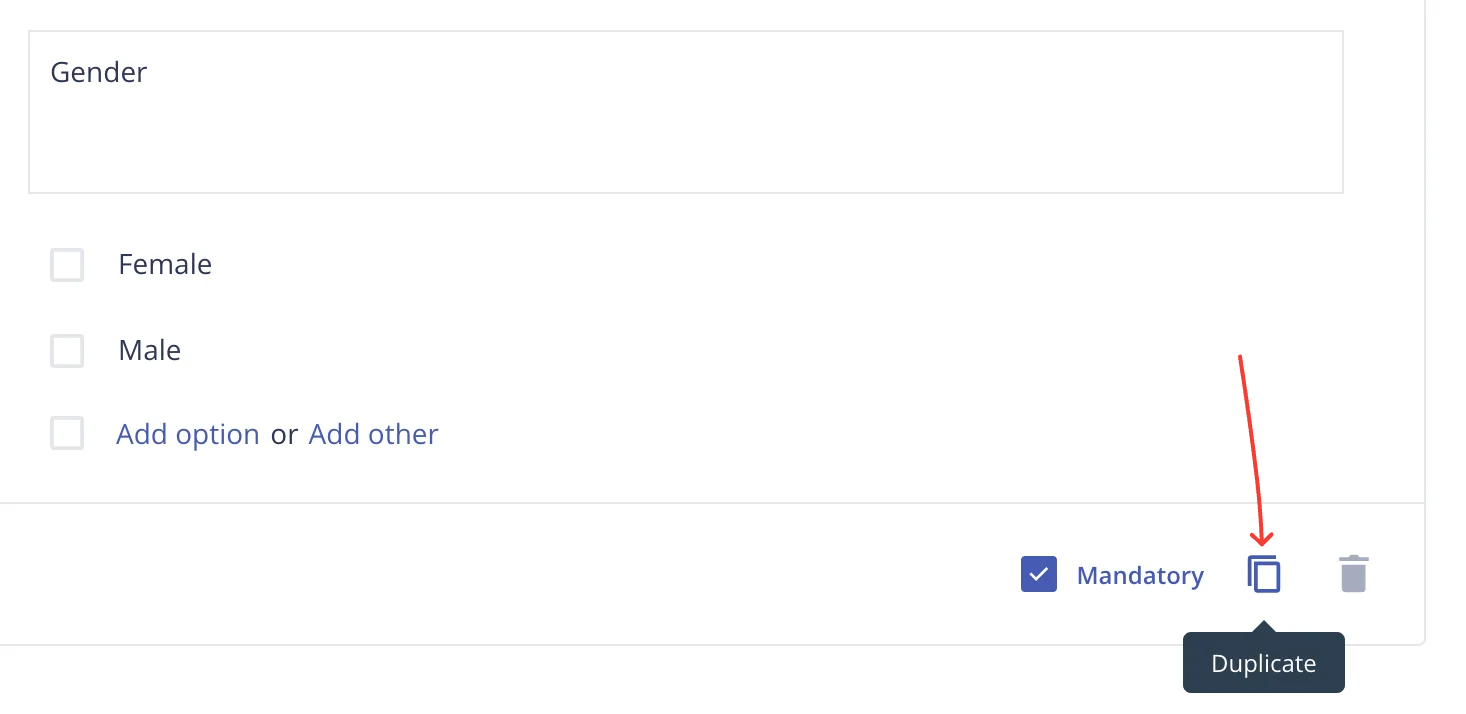
- Edit the duplicated question as needed.
This is particularly useful when you have questions with minor variations, eliminating the need to recreate each one from scratch.
How to change the order of choices/options in choice or dropdown type fields?
Customize the order of options to suit your preferences:
- Click and hold the three horizontal bars (≡) next to the choice.
- Drag and drop the choice to the desired position within the list.

This intuitive drag-and-drop functionality ensures your options are presented in a logical and user-friendly order.
Utilizing Nested Fields
Create dynamic forms by adding nested questions that appear based on user selections:
- For single-choice, multi-choice, or dropdown fields, click on "Add Nested Fields."
- Define the nested question that should appear when a specific option is selected.

Points to Note:
- Nested fields will only display when the associated choice is selected.
- Only one level of nesting is supported.
- You can include profile fields, custom fields, content, and document requests in the nested field.
- To show a whole stage only to some talent, add an entry condition to the stage with Add condition. See How to Manage Workflows: Stages, Stage Managers and Moving Talent for how conditions behave.
Support/Resources
Still have questions about the Workflow Editor? Click Support in the bottom-left corner of Worksuite to contact our Support team, or email support@worksuite.com. Including a link to the page you're on and a screenshot helps us answer faster.