
Dashboards allow you to tailor your welcome screen for your internal teammates. This customizable page will direct them to specific platform actions relevant to their role.
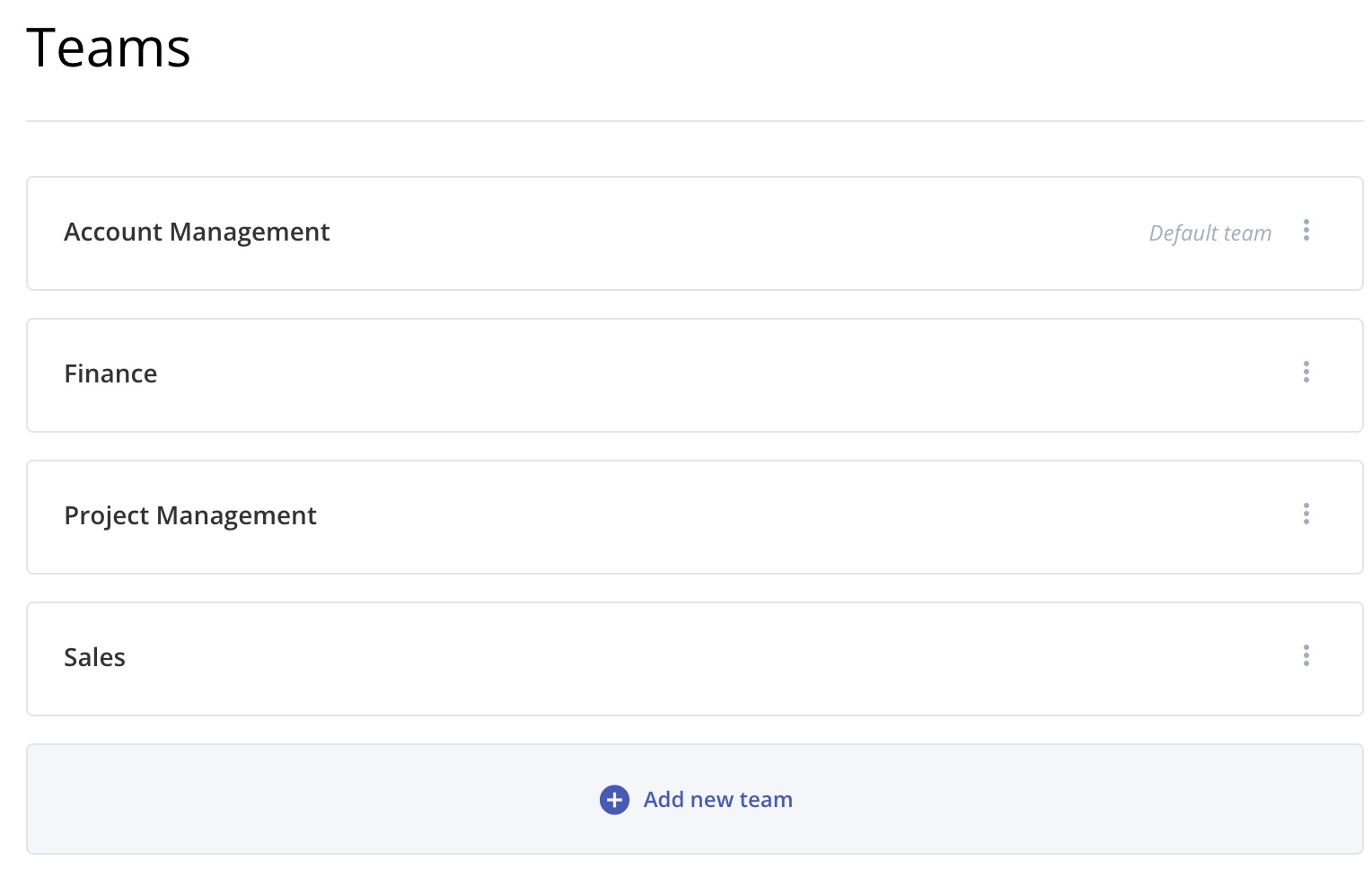
Teams allow you to group your internal team members and drive system access to tasks or payments based on their assigned team.
TABLE OF CONTENTS
Teams and Dashboards can be built to direct the user to a specific action needed within a module.
Dashboards can include default options readily available in your platform, or you can create a custom action that links to a specific page that applies to your team!
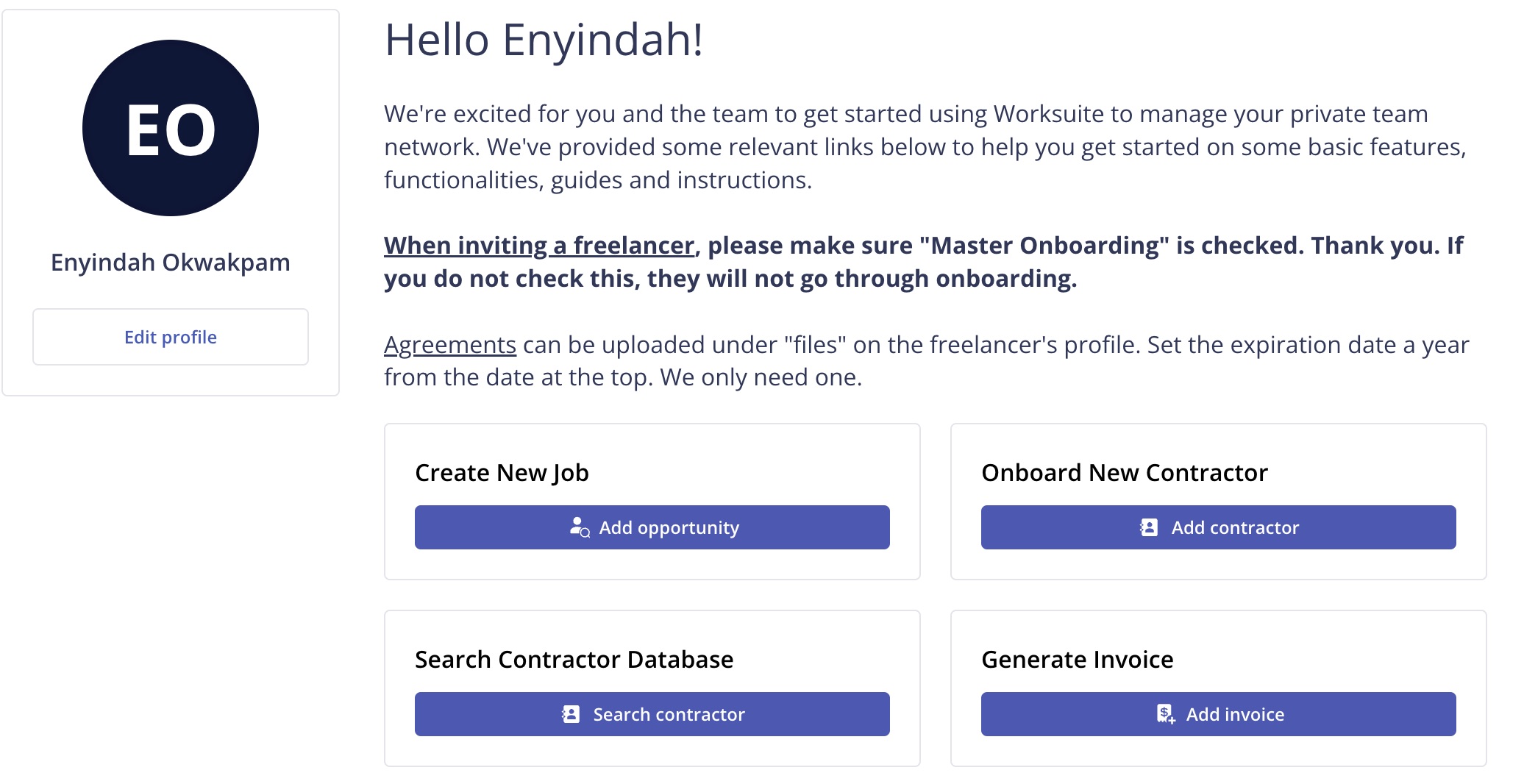
Dashboards
Dashboards can be segmented by staff function with the creation of Teams. For example, you could enable a unique dashboard for analysts and another for your hiring managers when creating a team.
When creating a dashboard, you'll have a list of pre-defined actions. You also have the option to create a custom action if needed. For an action to be possible, you will need the URL of the module action. The button on the dashboard will link directly to that module action.
The dashboard can also be customized by including a welcome note and a description of the actions.
Creating Dashboards
- Go to Settings > Team > Dashboards.
- Click Add new dashboard.
- Enter a Name (hint: use something that pertains to the team function) and a Welcome note.
- Under Dashboard actions, add the actions this team needs.
- Click Save dashboard.
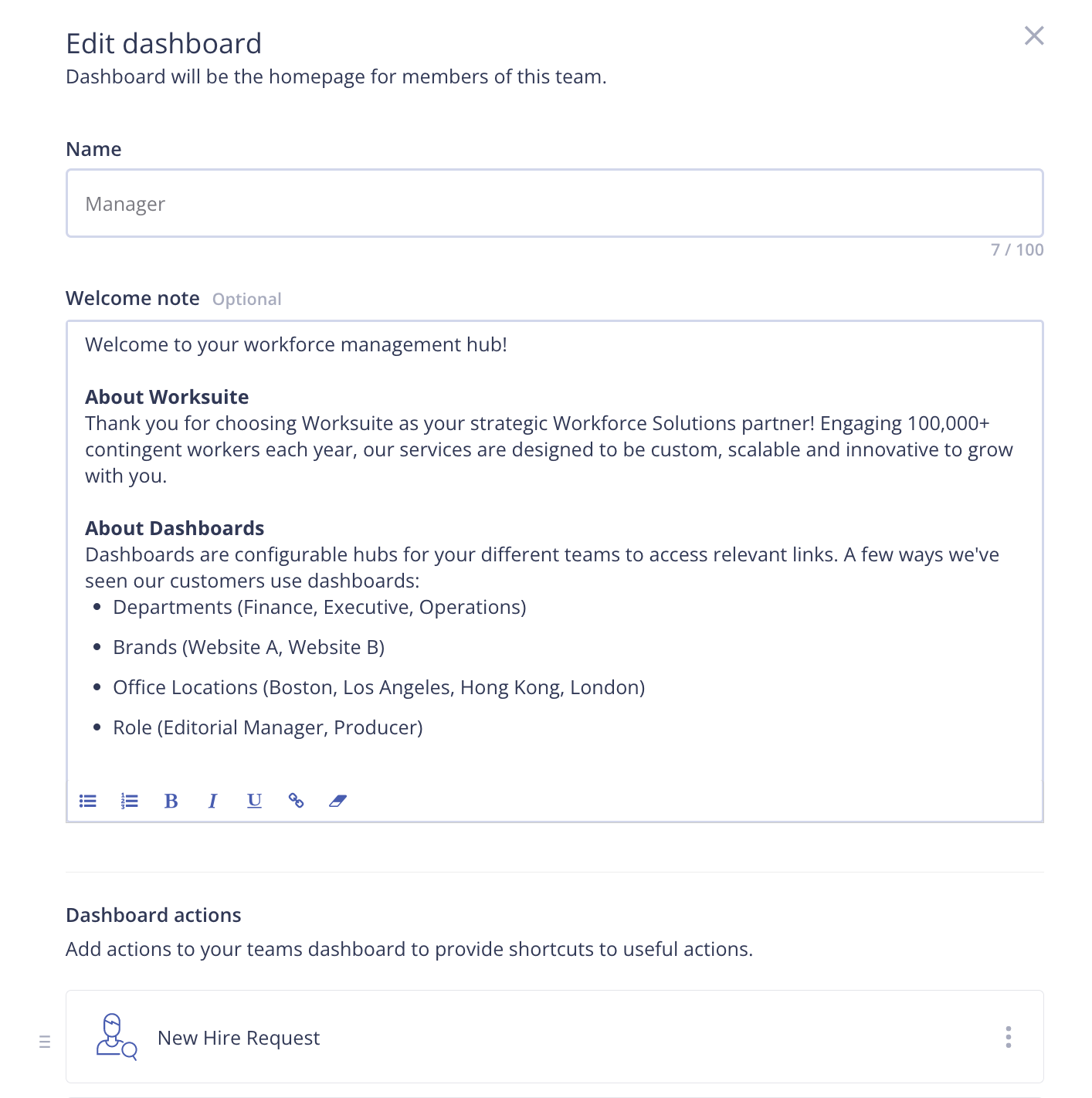
You can create multiple dashboards, but each team will be assigned to a single dashboard.
Teams
You can create multiple teams within your Worksuite platform. Each team performs a specific set of actions regarding your talent management.
Use case: Your organization has several types of users (content creators, finance team members and talent managers). Each user type can be placed in a team with an associated dashboard that highlights the daily actions they take.
Creating Teams
- Go to Settings > Team > Teams.
- Click Add new team
- Complete the fields for naming the team (hint: use something that pertains to the team function)
- Choose the Dashboard this team should see.
- Tick Default team if new teammates should join this team automatically.
- Click Add.

When assigning a dashboard to a team, you have the option to mark the team as the default. This means that whenever a new user is added, they will be assigned to this team.
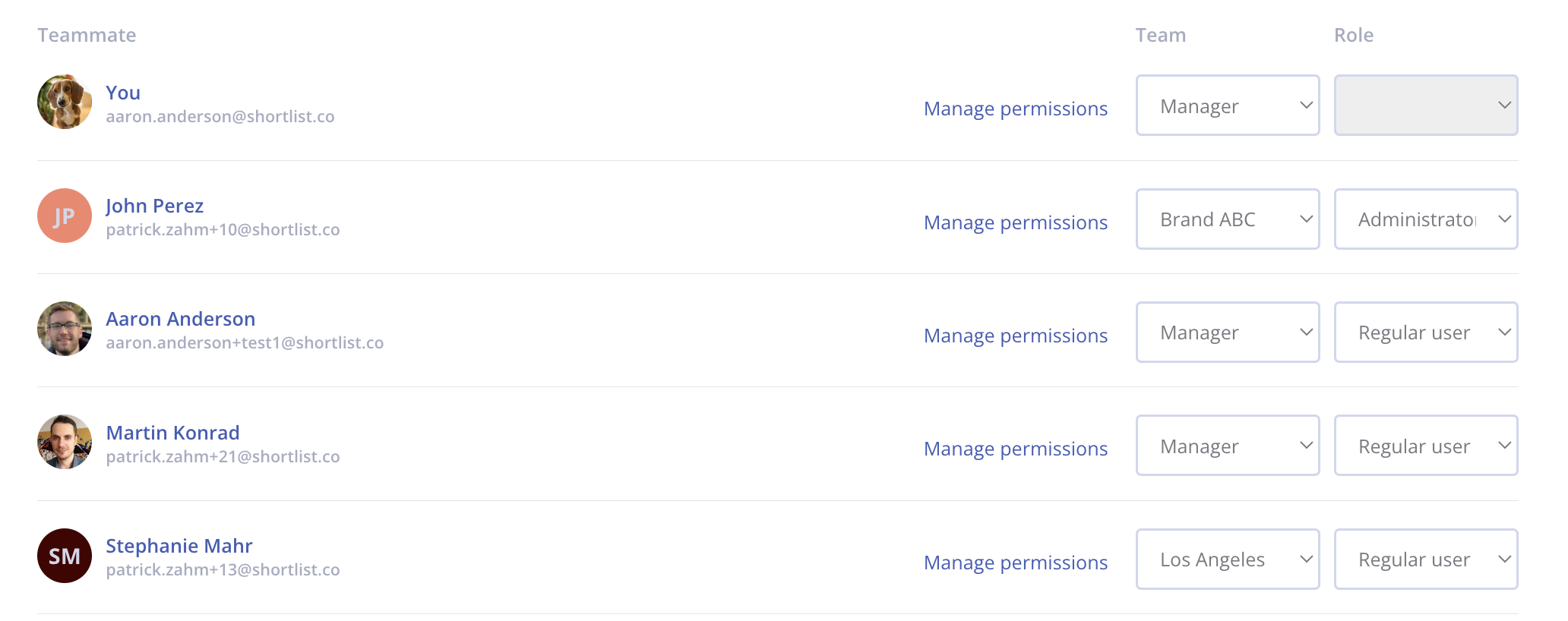
Then go to Settings > Team > Teammates and, in each person's row, choose their team in the Team column. The change saves straight away.
Multiple teams can be created, but each teammate can be assigned to one team. A Contract can belong to more than one team.
Based on the actions selected in the dashboard for the team, a dashboard page with the action will be available to your team members.
Individual permissions must be set so the dashboard action is possible. If an individual does not have permission to take the desired action, it will not appear on their dashboard.
Using Teams to Control User Permissions
Ready to segment and control the visibility of contractor tasks and invoice data? Using Teams, you can restrict a user from viewing a task, invoice or Contract outside of their respective team. For Contracts, see Why Can't I See or Edit a Contract?.
- Start by setting up your teams and assigning each user to a Team.
- Go to Settings > Team > Roles and Permissions and choose the permissions that suit your organization. If you need help, contact Worksuite Support. See the screenshot below for a recommended setup.
- Edit each project and task, choose its team in the Teams field, and click Save changes.

To set permissions and roles, see Roles and Permissions for Team Members.
Support/Resources
Still have questions about Teams and dashboards? Click Support in the bottom-left corner of Worksuite to contact our Support team, or email support@worksuite.com. Including a link to the page you're on and a screenshot helps us answer faster.