
The Relationship Manager feature in Worksuite enables you to assign specific team members to oversee individual talent relationships. This ensures that relevant information and notifications are directed to the appropriate personnel, enhancing efficiency and fostering stronger connections with external talent.
Understanding Relationship Managers in Worksuite
Note that Talent may also be referred to as partners, vendors, freelancers, contractors or a custom term determined by your account administrator.
TABLE OF CONTENTS
Role of a Relationship Manager
A Relationship Manager is responsible for managing communications and monitoring key activities related to assigned talent. They receive email notifications when their assigned talent engages in the following actions:
- Complete registration
- Sign a new agreement
- Upload a new document
- Have an expired document
- Upload a payment request/invoice
- Send a private message
- Add an expense
- Update their tax information (if the relationship manager has permission to see it)
- Update their bank details (if the relationship manager has permission to see them)
- Update their portfolio
Note: If a talent has no relationship manager, most of these emails go to every team member who has that notification turned on. Setting a relationship manager sends them only to that person (task managers still get invoice and expense emails for their tasks). Tax information, bank detail and portfolio update emails are the exception: they go only to relationship managers, so if a talent has none, no one on your team gets them. When you remove a teammate, their relationship manager assignments are deleted, not passed on. Assign new relationship managers before you remove someone. See How to Invite and Remove Team Members.
For a Relationship Manager to perform their role effectively, ensure they have the necessary permissions to access and manage the talent’s activities. Learn more about Roles and Permissions for Team Members.
How to Assign a Relationship Manager
- By selecting a specific talent and viewing their profile
- By selecting one or multiple talents from the tile view
- By filling in the Relationship managers field when you invite talent
- By adding the Set relationship manager action to a workflow action stage
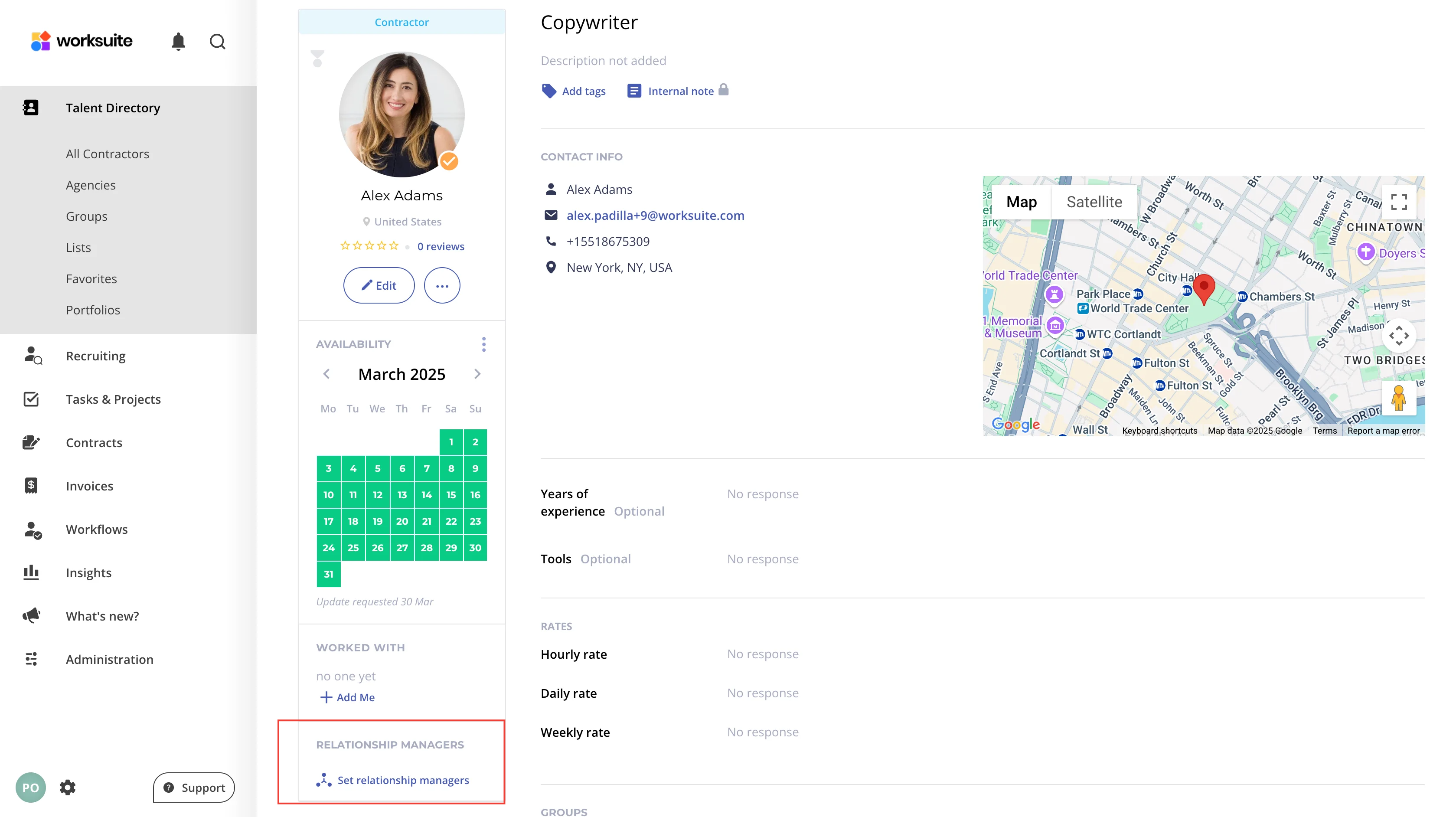
Assigning via a Talent’s Profile
- Navigate to the talent’s profile.
- In the Relationship Managers section, click Set relationship managers.
- Search for and tick the teammates you want.
- Click Save.
Assigning Multiple Talents
- Click the checkbox in the upper left corner of the talent tiles for which you would like to set a relationship manager.
- At the top of the screen, select "Set relationship managers" to select or remove the desired team members.
- Click Save.
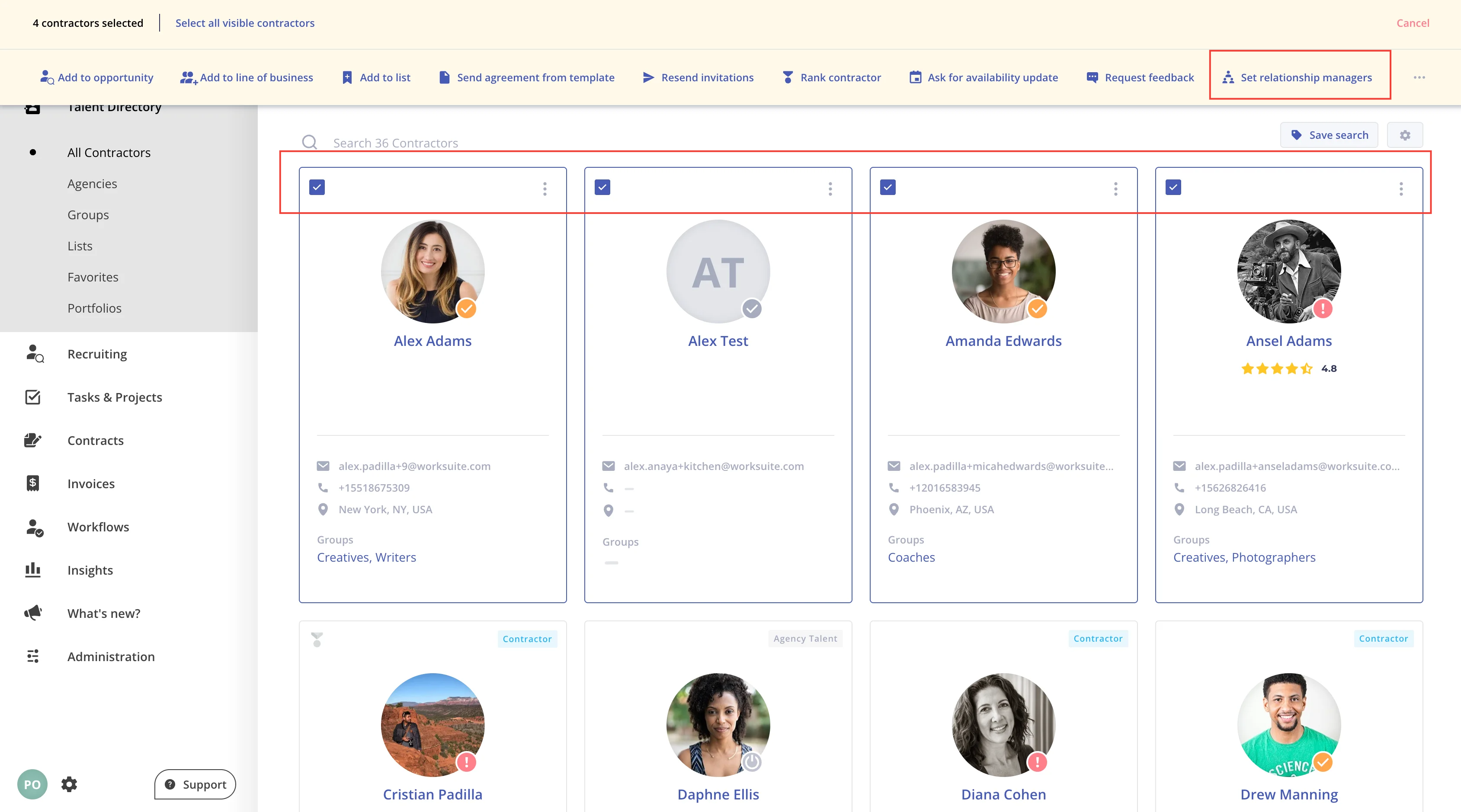
When assigning the relationship manager to multiple talents, you may notice that the check box has 3 default settings:

Check mark in the box - the team member is set as the relationship manager for all selected talent.
No check mark - the team member is not set as a relationship manager for any of the selected talent.
Minus sign - the team member is set as a relationship manager for some of the selected talent, but not all of them.

You can click into the box to edit these designations.
Support/Resources
Still have questions about Relationship Managers? Click Support in the bottom-left corner of Worksuite to contact our Support team, or email support@worksuite.com. Including a link to the page you're on and a screenshot helps us answer faster.